
Macros & VBA
How to Create a Button in Excel (to run a macro)
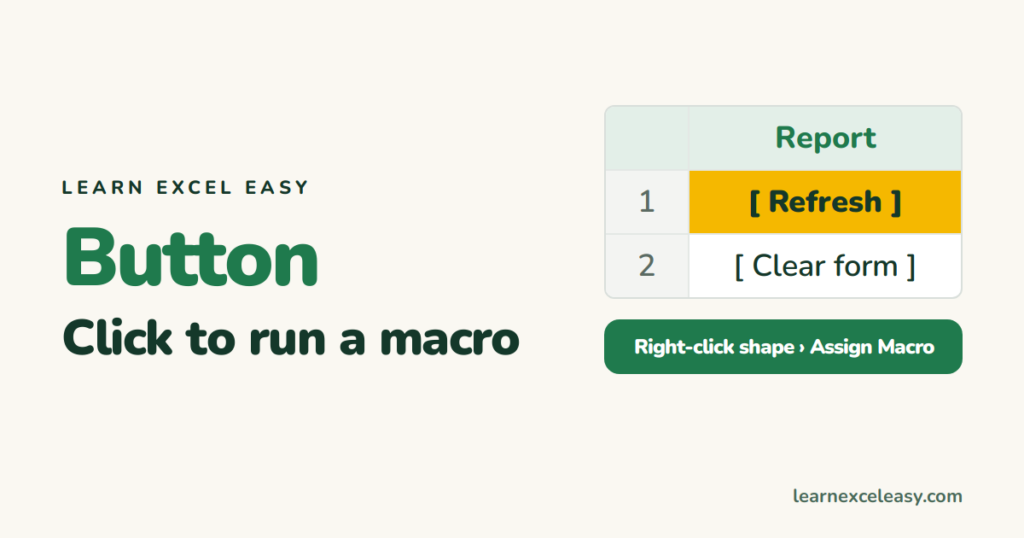
Add a clickable button that runs a macro — using a shape (easiest), a Form Control button, or an ActiveX button — and save the file so the button keeps working.
Short, plain-English tutorials on formulas, shortcuts, charts and everyday Excel tasks. No jargon. One idea per post.
Start here Get Daily One Lesson
Add a clickable button that runs a macro — using a shape (easiest), a Form Control button, or an ActiveX button — and save the file so the button keeps working.
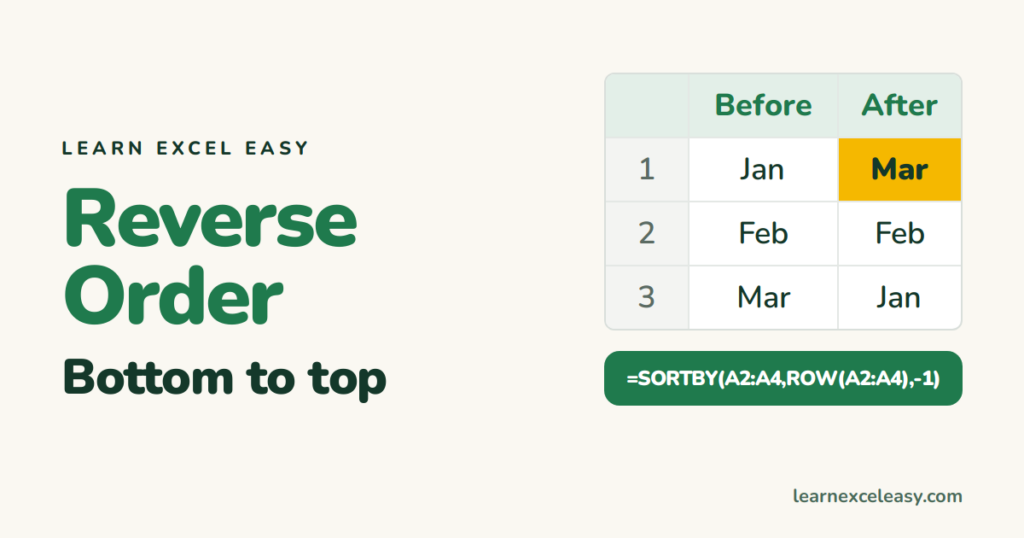
Flip a column upside down with a helper column and sort, with SORTBY in one formula, or with INDEX in older Excel — plus reversing a row and reversing text.

Copy only the visible rows of a filtered or grouped list with Alt+; — so hidden rows don't come along when you paste. Plus the ribbon way and the Mac shortcut.
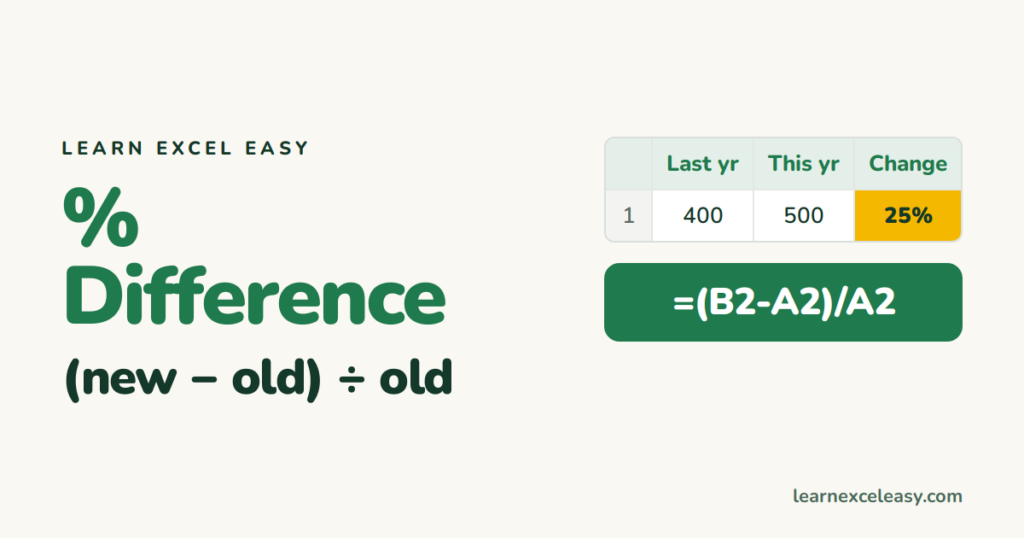
Work out the percentage change from an old value to a new one, the percentage difference between two values with no 'before', and fix #DIV/0! and odd results.
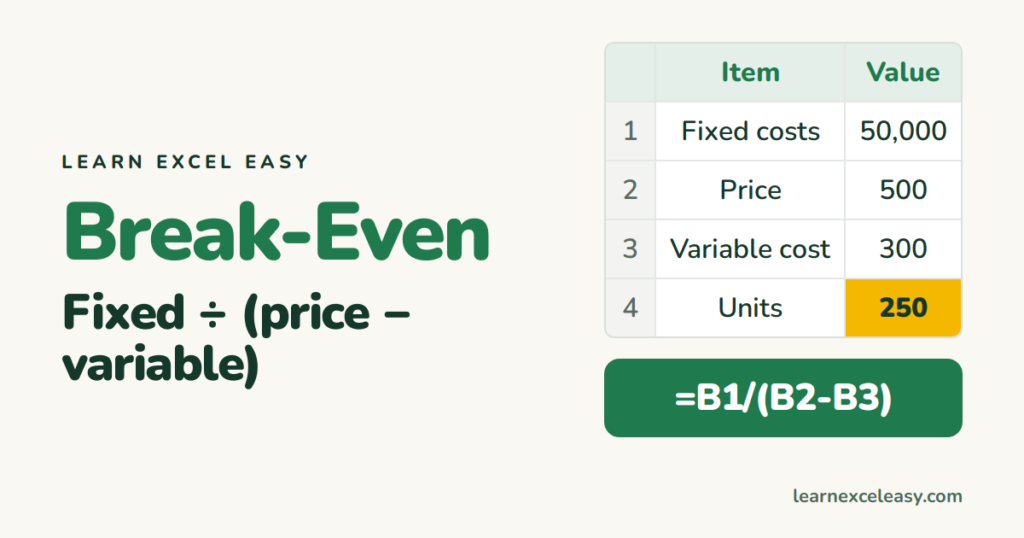
Work out how many units you need to sell to cover costs, the break-even sales value, a what-if table and a break-even chart — with a ready formula layout.

Build a one-page Excel dashboard: clean data in a table, a pivot table per question, KPI cards, charts, and slicers that filter everything at once.
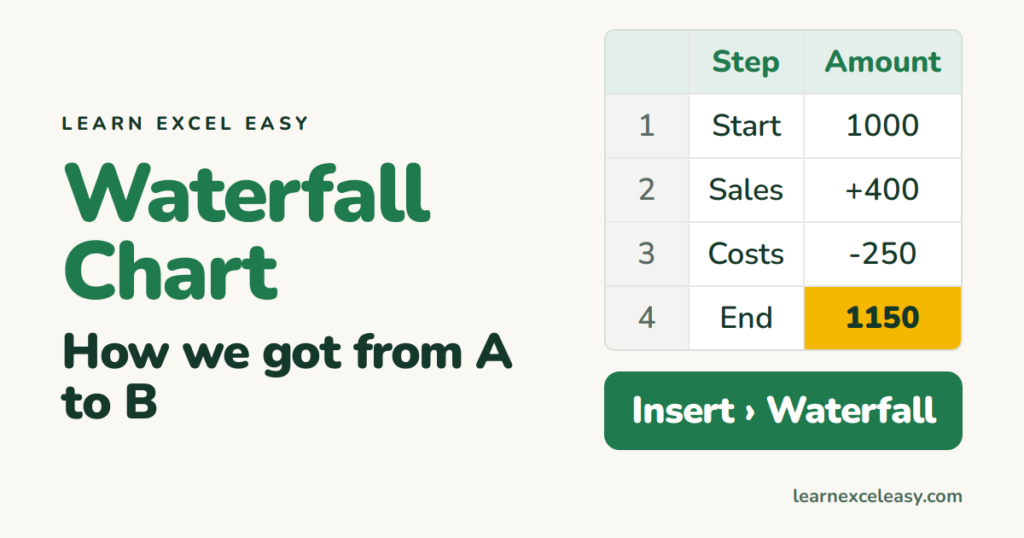
Build a waterfall chart that shows how a starting value rises and falls to an end total — set the totals correctly, colour ups and downs, and fix the common problems.
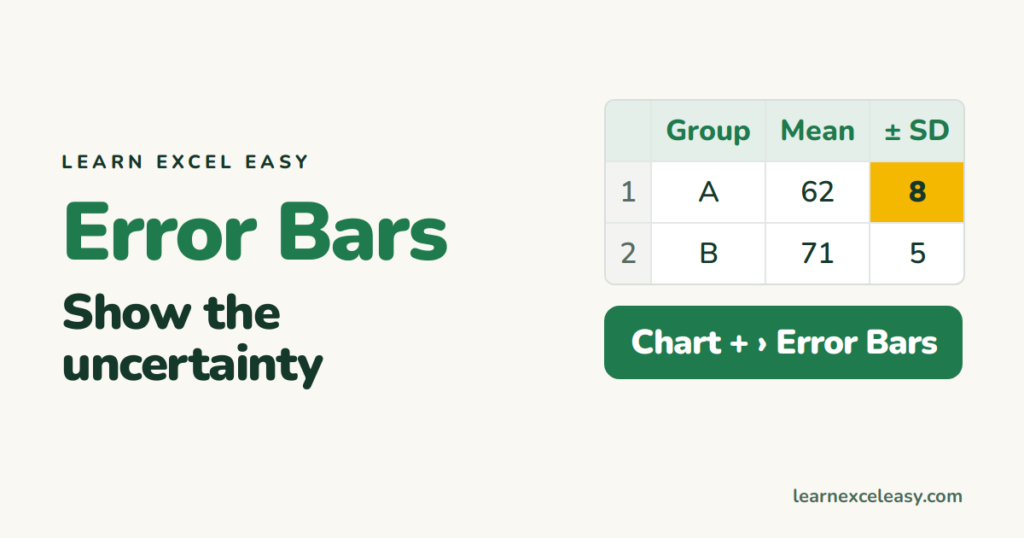
Add error bars to a column, bar, line or scatter chart, choose standard error, percentage or standard deviation, and use your own values for each bar.

Excel desktop has no built-in date picker. Your options: date validation, a free Microsoft add-in, the old DTPicker control, or a picker in Excel for the web and forms.
