

Formulas & Functions
TEXTAFTER in Excel: get the text after a character
TEXTAFTER returns everything after a delimiter — the domain after @, the last name after a space, the text after the last slash. With the older RIGHT/FIND version.
Short, plain-English tutorials on formulas, shortcuts, charts and everyday Excel tasks. No jargon. One idea per post.
Start here Get Daily One Lesson
TEXTAFTER returns everything after a delimiter — the domain after @, the last name after a space, the text after the last slash. With the older RIGHT/FIND version.

TEXTBEFORE returns everything before a delimiter — a space, @, comma or word. Pick the 2nd or last occurrence, handle missing delimiters, and the older LEFT/FIND version.

ISBLANK returns TRUE for an empty cell. Use it inside IF, know why it says FALSE for cells that look empty, and the = test that often works better.
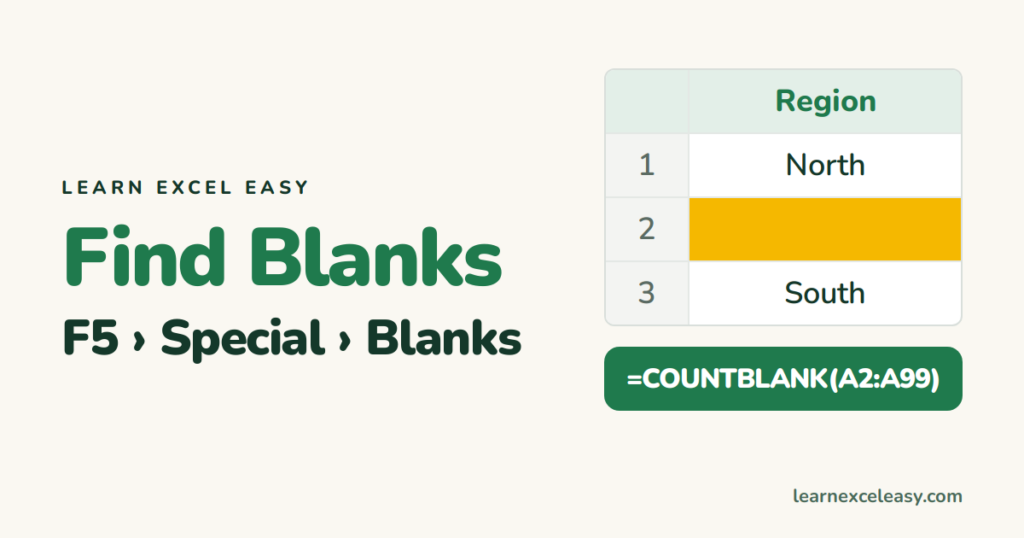
Select every blank cell at once with Go To Special, count them with COUNTBLANK, highlight them, and fill them with 0 or the value above in one step.

Excel has no word count button. Count words in a cell with LEN, TRIM and SUBSTITUTE, total a whole column, and count one specific word.
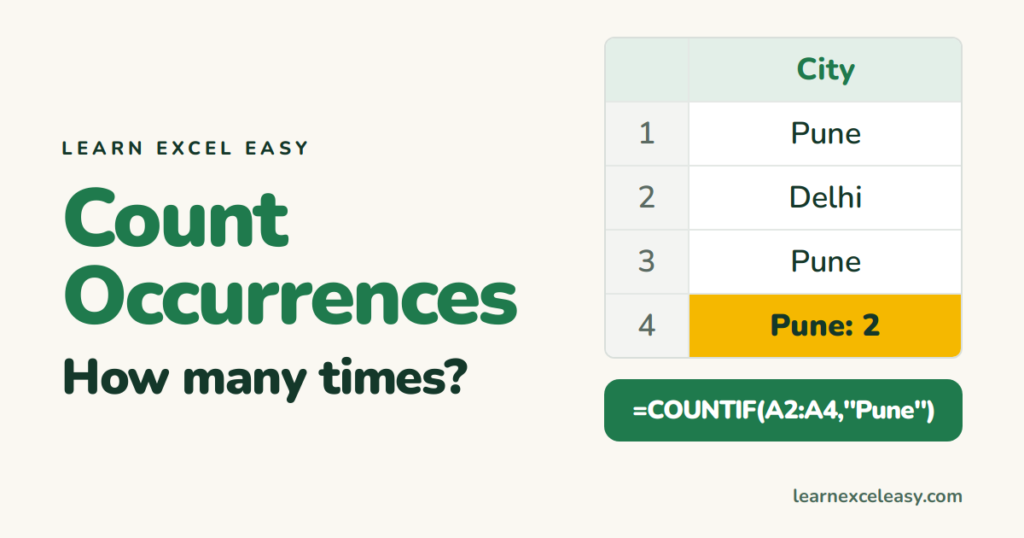
Count how many times a value appears in a range, how many cells contain a word, how often a character appears in a cell, and a count for every item at once.

Write IF formulas that test whether a value is greater than, less than or between two numbers, compare to another cell or date, and return text or a calculation.

Add up values greater than a number, a cell or a date with SUMIF, sum one column based on another, and sum between two limits with SUMIFS.
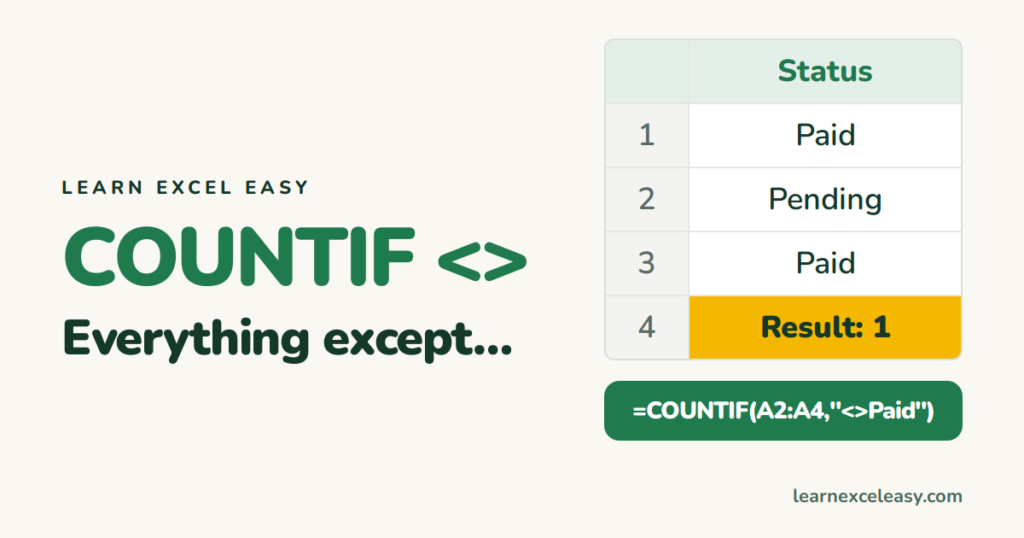
Count cells that are not equal to a word, number or cell with the <> operator, count non-blank cells, and exclude several values at once.
