
Excel Basics
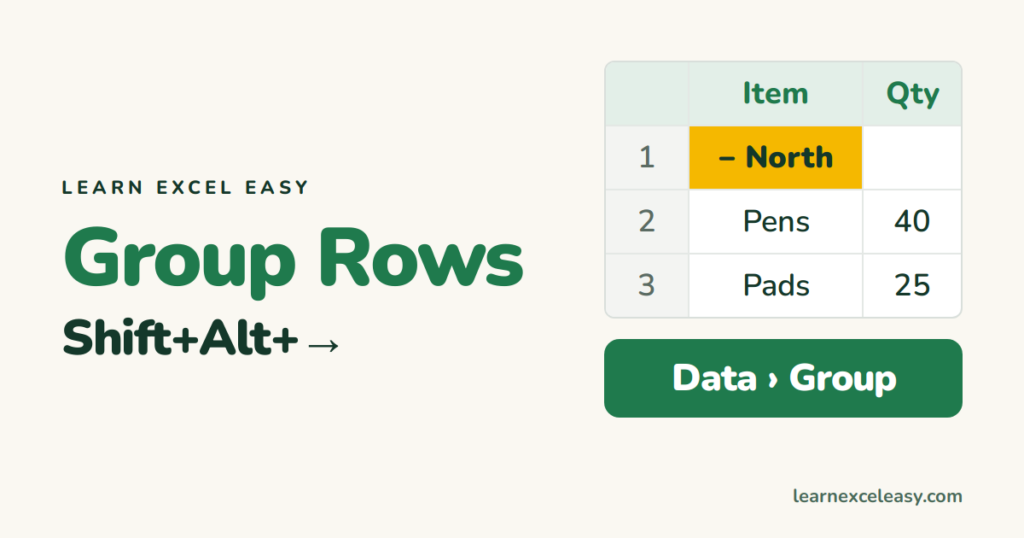
How to Group Rows in Excel (collapse and expand with +/−)
Group rows so you can collapse and expand them with a button, build nested levels, use Auto Outline and Subtotal, and ungroup again.
Short, plain-English tutorials on formulas, shortcuts, charts and everyday Excel tasks. No jargon. One idea per post.
Start here Get Daily One Lesson
Group rows so you can collapse and expand them with a button, build nested levels, use Auto Outline and Subtotal, and ungroup again.
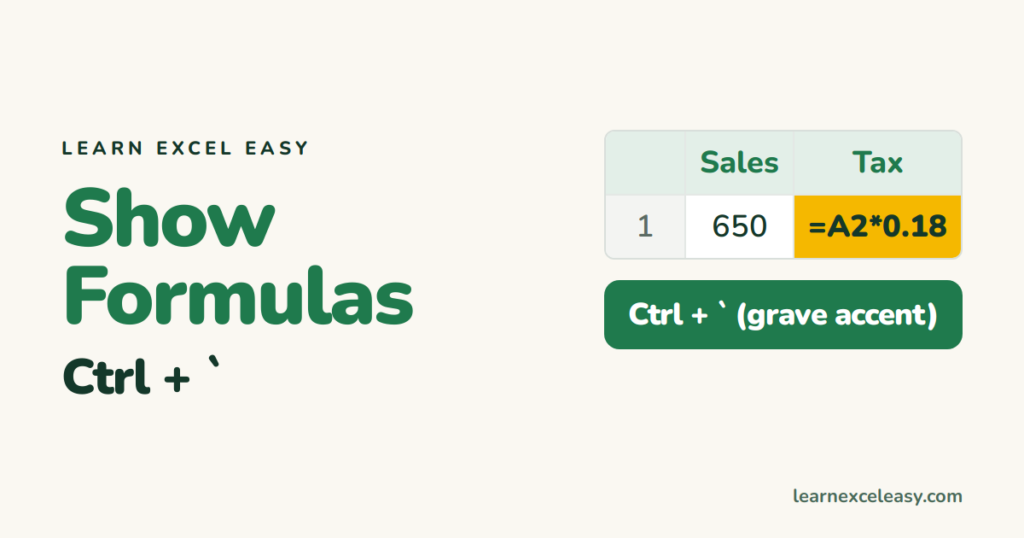
Show every formula on the sheet with Ctrl+`, show one formula next to its result with FORMULATEXT, and fix cells that show the formula when you want the answer.

Place a picture inside a cell with Place in Cell or the IMAGE function, or float it over cells and make it move and sort with its row.
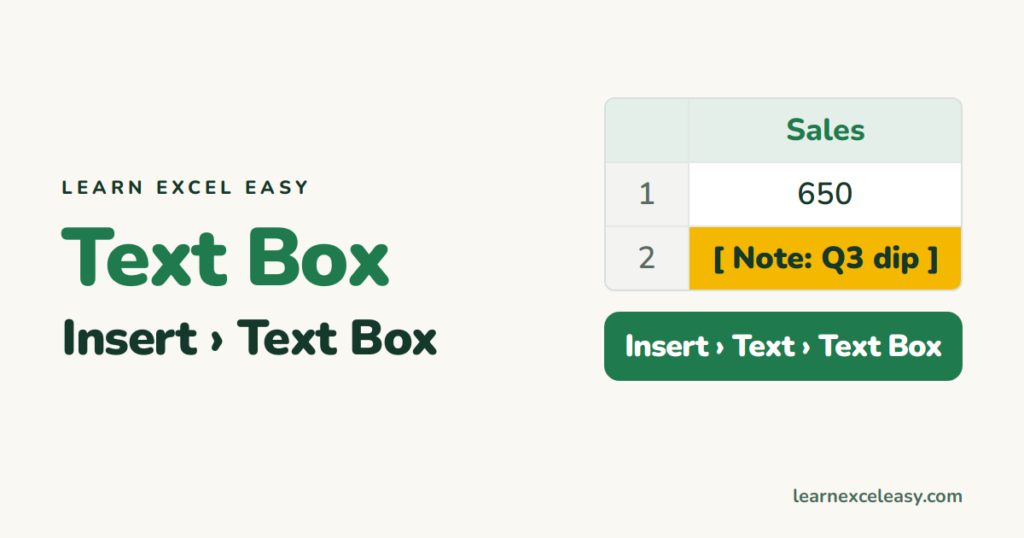
Insert a text box that floats over the grid, format and move it, link it to a cell so it shows a live value, and remove its border.
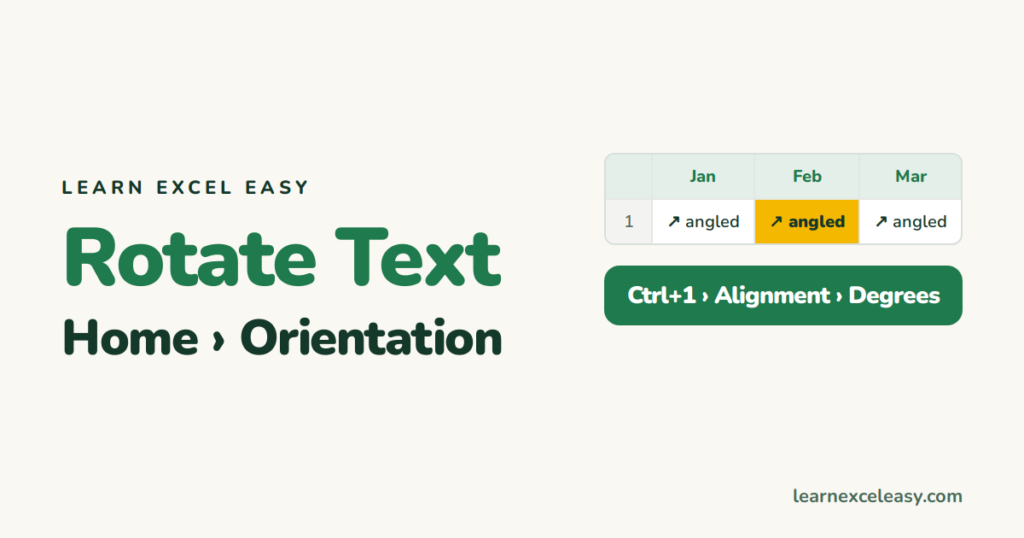
Rotate text in a cell with the Orientation button, set an exact angle, stack letters vertically, and rotate text in a text box or chart axis.
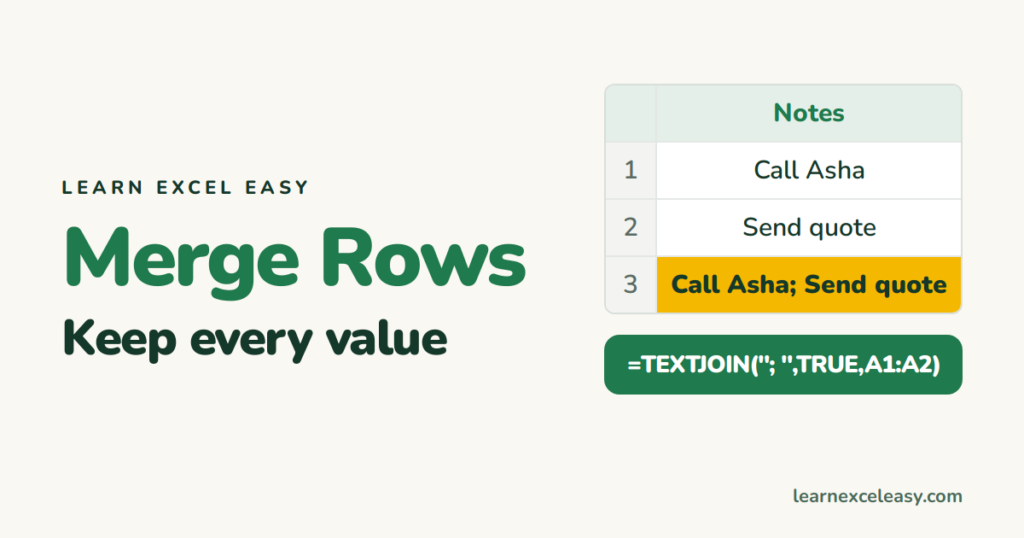
Merge Cells keeps only the first value. To combine the text of several rows into one, use TEXTJOIN, the & operator, or Justify — and group duplicate rows with a formula.

Use Merge & Center to put a title across several columns, undo it, fix the greyed-out button, and use Center Across Selection when you don't want merged cells.
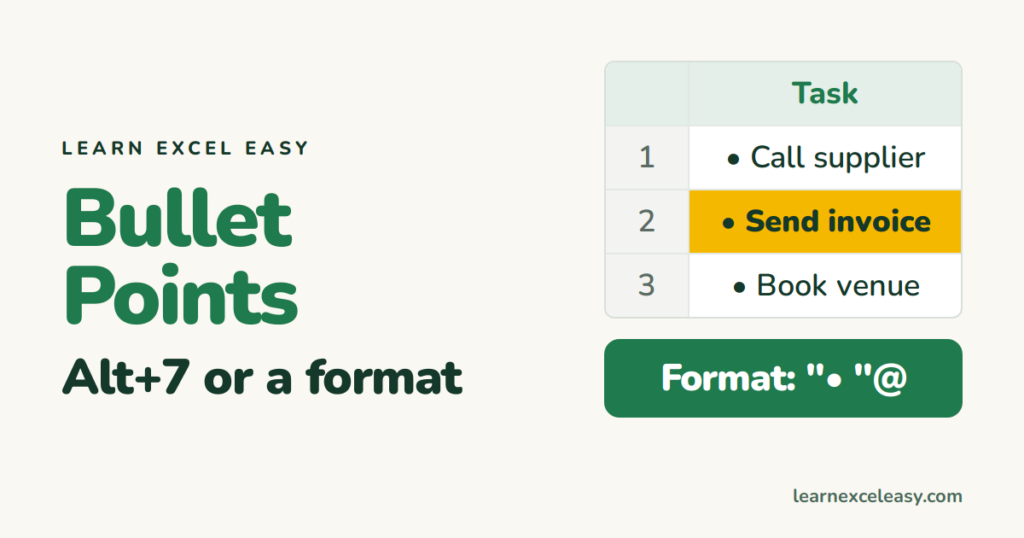
Add bullet points in Excel with Alt+7, a custom number format that bullets a whole column, several bullets in one cell with Alt+Enter, or a text box.

Make cells bigger by dragging the column or row edge, set an exact width and height, autofit to the contents, and make every cell the same size at once.
