
How to Show Formulas in Excel (instead of results)
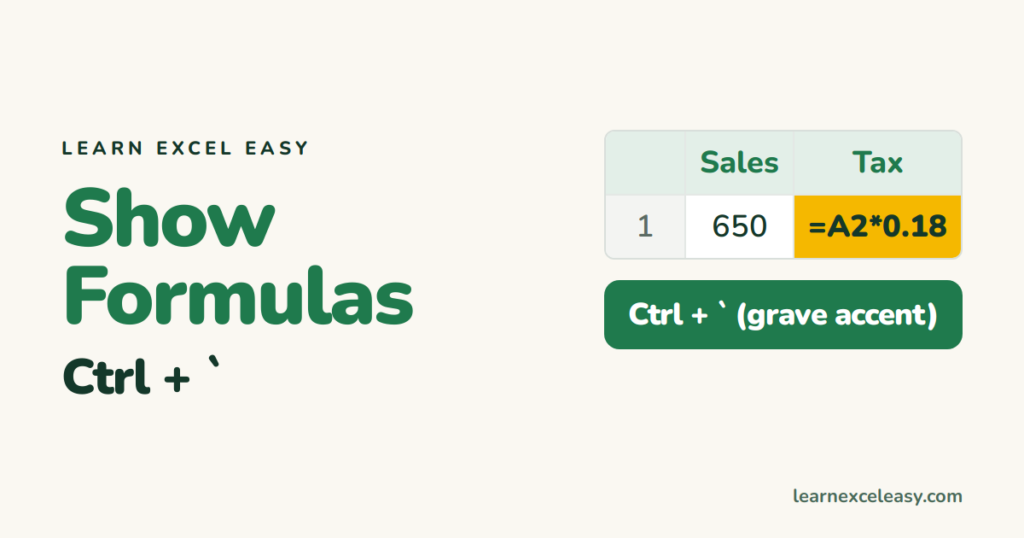
Show all formulas: Ctrl + `
The ` key is above Tab, left of 1. Press Ctrl+` and every cell shows its formula instead of the result. Press it again to switch back.
Same thing on the ribbon: Formulas › Show Formulas.
Show one formula beside its result
=FORMULATEXT(B2)
Handy for teaching or documenting a sheet.
See which cells feed a formula
Click the cell › Formulas › Trace Precedents. Arrows point from the inputs. Remove Arrows clears them.
Print with formulas
Turn on Show Formulas, then print. Widen the columns first so nothing gets cut off.
The opposite problem: formula shows, result doesn’t
- Show Formulas is on — press Ctrl+`.
- Cell is formatted as Text — change the format to General, click in the cell, press Enter.
- A space or apostrophe before the = — delete it.
Results not updating? Formula not calculating.
Hide formulas from others
Ctrl+1 › Protection › tick Hidden, then protect the sheet.

20 years with spreadsheets and enterprise systems. Writes one short, plain-English Excel lesson a day. Got an Excel question? learnexceleasycom@gmail.com
