
Protect a Sheet in Excel: stop accidental edits in 3 clicks
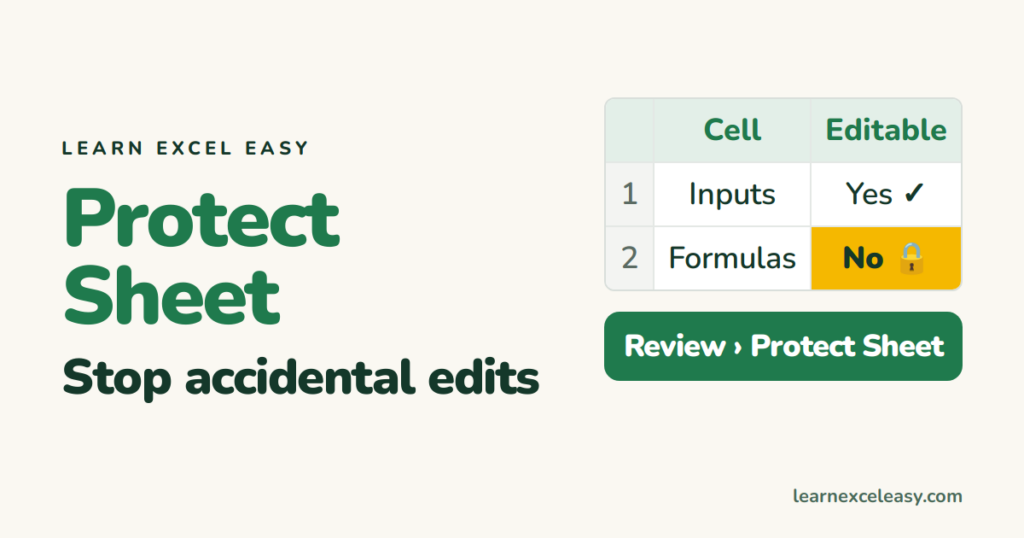
Protecting a sheet stops people changing cells. Used well, it keeps formulas safe while inputs stay open.
Protect everything (3 clicks)
- Review › Protect Sheet.
- Type a password (optional). OK. Confirm.
Every cell is now read-only.
Leave some cells editable (the usual case)
- Before protecting: select the input cells. Ctrl + 1 › Protection › untick Locked. OK.
- Now Review › Protect Sheet.
Those cells accept typing; everything else refuses. Detailed walk-through: lock cells.
What users may still do
In the Protect Sheet dialog, tick what to allow: Format cells, Sort, Use AutoFilter, Insert rows. Untick Select locked cells if you want Tab to jump between inputs only.
Unprotect
Review › Unprotect Sheet › password.
Check it worked
Click a formula cell and type — Excel refuses. Click an input cell — it works.
What it does not do
Sheet protection is not security. Anyone can copy the sheet to a new workbook or open it in Google Sheets. To stop the file being opened at all, use a file password.
Common mistake
Forgetting to unlock the input cells first — then nobody can enter anything, including you. Unprotect, unlock inputs, protect again.

20 years with spreadsheets and enterprise systems. Writes one short, plain-English Excel lesson a day. Got an Excel question? learnexceleasycom@gmail.com
