
Get the Year from a Date in Excel (YEAR, and grouping by year)
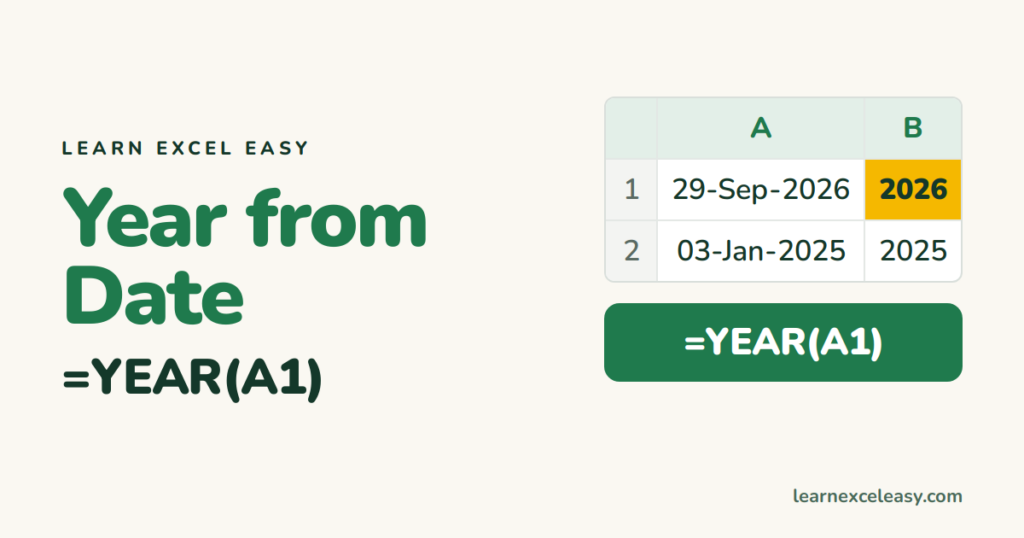
One function, and it is called what you would guess.
Steps
- Dates in column A.
- B1:
=YEAR(A1). Enter. Drag down.
29-Sep-2026 → 2026, as a number you can sort and count.
As text (e.g. for labels)
=TEXT(A1, "yyyy")
Two-digit year: "yy" → 26.
Fiscal year (starting April)
=IF(MONTH(A1)>=4, YEAR(A1), YEAR(A1)-1)
Label like FY 2026-27: see quarter from date.
Total per year
Years in B, amounts in C. In E1 type 2026, F1: =SUMIF(B:B, E1, C:C). Count instead: =COUNTIF(B:B, E1).
Or a pivot: Date to Rows › right-click › Group › Years.
Is the date this year?
=YEAR(A1)=YEAR(TODAY())
Change the year, keep the day and month
=DATE(2027, MONTH(A1), DAY(A1))
Check it worked
The result is right-aligned (a number). =YEAR("29-Sep-2026") typed directly gives 2026.
Common mistake
#VALUE! — the date is text. Fix: convert text to date.

20 years with spreadsheets and enterprise systems. Writes one short, plain-English Excel lesson a day. Got an Excel question? learnexceleasycom@gmail.com
