
Excel VBA Loop: For Next and For Each, with 3 real examples
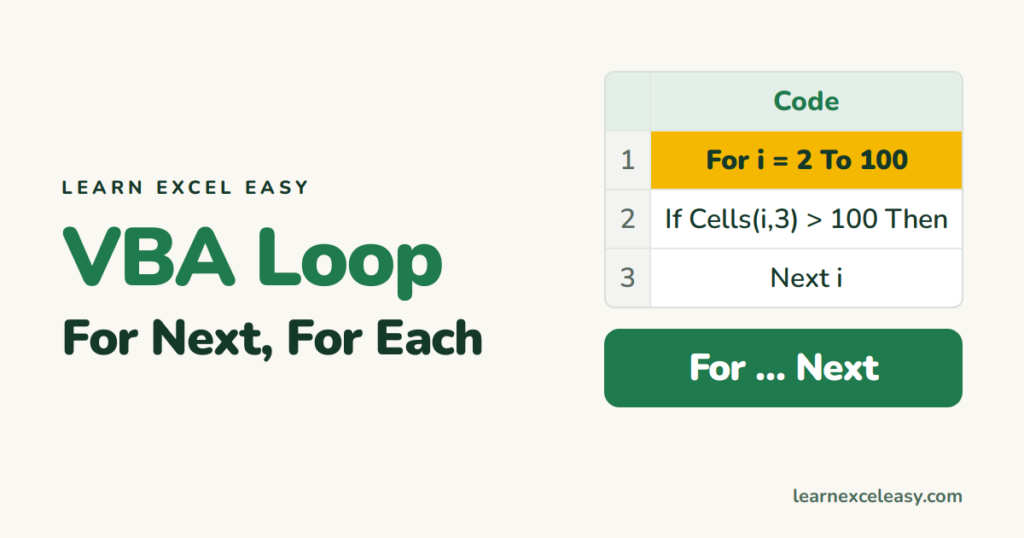
A loop repeats the same lines for every row, cell or sheet. It is what turns a 5-line macro into something that processes a thousand rows.
For Next — count through rows
Sub FlagBigOrders()
    Dim i As Long
    For i = 2 To 100
        If Cells(i, 3).Value > 100 Then
            Cells(i, 4).Value = "Big"
        End If
    Next i
End Sub
i goes 2, 3, 4 … 100. Cells(i, 3) is row i, column C. Each big order gets “Big” in column D.
Last row automatically
Dim lastRow As Long
lastRow = Cells(Rows.Count, 1).End(xlUp).Row
For i = 2 To lastRow
Finds the last used row in column A, so the loop stops where the data stops.
For Each — every cell in a range
Dim c As Range
For Each c In Range("A2:A100")
    c.Value = Trim(c.Value)
Next c
Trims spaces in every cell. No counting needed.
For Each — every sheet
Dim ws As Worksheet
For Each ws In Worksheets
    ws.Range("A1").Value = ws.Name
Next ws
Do While — until something happens
Dim r As Long: r = 2
Do While Cells(r, 1).Value <> ""
    Cells(r, 5).Value = Cells(r, 3).Value * 1.18
    r = r + 1
Loop
Keeps going until column A is empty.
Steps to try one
- Alt + F11 › Insert › Module. Paste FlagBigOrders.
- Put numbers in C2:C20. F5.
Check it worked
Every row with C over 100 has “Big” in D; the others are blank.
Common mistakes
Endless loop (Excel freezes) — in Do While you forgot r = r + 1. Press Ctrl + Break (or Esc twice) to stop it.
Slow on big sheets — add Application.ScreenUpdating = False at the start and = True at the end.

20 years with spreadsheets and enterprise systems. Writes one short, plain-English Excel lesson a day. Got an Excel question? learnexceleasycom@gmail.com
