
Excel Formula Not Calculating? 5 causes and fixes
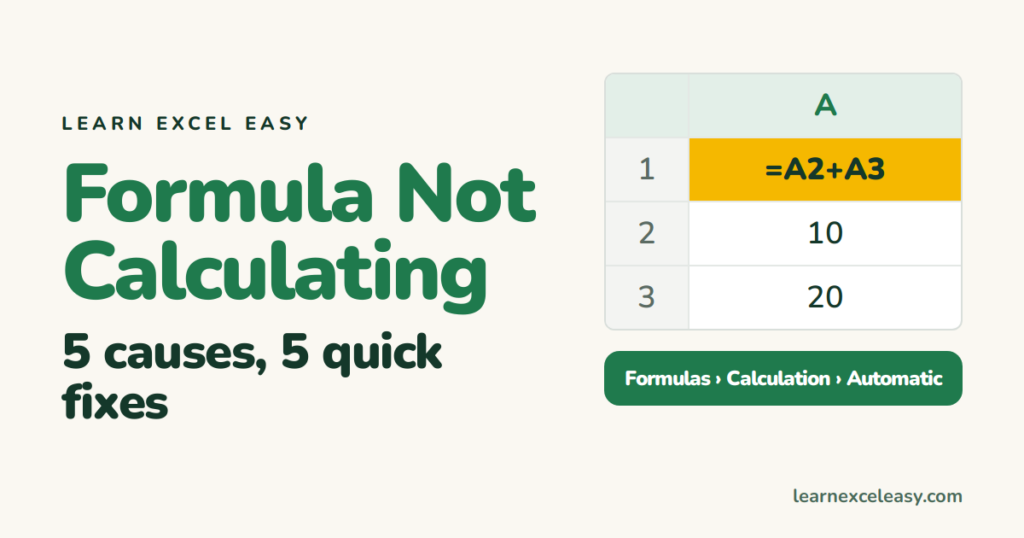
You typed a formula and Excel shows the formula itself, an old answer, or 0. Check these five, in order.
1. Calculation is set to Manual
Go to Formulas › Calculation Options and choose Automatic. This is the cause most of the time — someone set it to Manual on a big file and it stuck. Press F9 to recalculate now.
2. The cell is formatted as Text
If the cell shows =A2+A3 literally, the cell was Text before you typed. Select it, press Ctrl + 1, set the format to General, then click the cell, press F2 and Enter to re-enter it.
3. Show Formulas is on
Every formula on the sheet shows as text? Press Ctrl + ` (the key under Esc) to switch it off.
4. The numbers are text
The formula works but returns 0 or ignores some cells. Numbers imported from another system are often text — they sit left-aligned with a green triangle. Select them, click the warning icon, Convert to Number.
5. A space or apostrophe before the =
=A2+A3 with a leading space, or '=A2+A3, is text. Click the cell, press F2, Home, and delete the first character.
Still wrong?
A circular reference (a formula that refers to its own cell) shows a warning in the status bar. Fix the range so it excludes the formula cell.

20 years with spreadsheets and enterprise systems. Writes one short, plain-English Excel lesson a day. Got an Excel question? learnexceleasycom@gmail.com
