
How to Make a Calendar in Excel (monthly, with formulas)
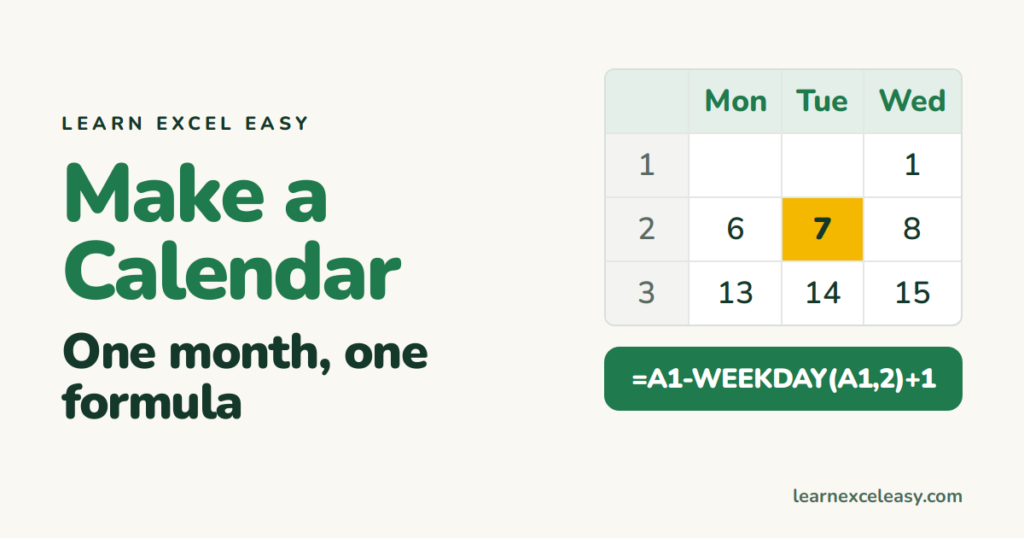
Excel’s calendar templates are fine, but a calendar you build yourself takes ten minutes and you understand every cell.
Step 1: the month cell
In A1 type the first day of the month: 1-Oct-2026. Format it as mmmm yyyy (Ctrl + 1 › Custom) so it reads “October 2026”. Merge A1:G1 or Center Across Selection.
Step 2: day headings
A2 to G2: Mon Tue Wed Thu Fri Sat Sun.
Step 3: the first date formula
In A3:
=$A$1-WEEKDAY($A$1,2)+1
This is the Monday on or before the 1st. In B3: =A3+1. Drag to G3.
Step 4: the other weeks
In A4: =G3+1. B4: =A4+1, drag to G4. Copy row 4 down to row 8 (six weeks covers any month).
Step 5: show only the day number
Select A3:G8 › Ctrl + 1 › Custom › type d. Cells show 1, 2, 3…
Step 6: grey out other months’ days
Select A3:G8 › Conditional Formatting › New Rule › formula:
=MONTH(A3)<>MONTH($A$1)
Format › Font colour light grey.
Step 7: highlight today
Another rule on the same range: =A3=TODAY(), green fill.
Check it worked
Change A1 to 1-Nov-2026. The whole grid rebuilds — November starts on a Sunday, so the first row should be greyed out except the last cell.
Make it useful
Set row heights to 80 and type notes under each date. Or list events on a second sheet and show them with XLOOKUP.

20 years with spreadsheets and enterprise systems. Writes one short, plain-English Excel lesson a day. Got an Excel question? learnexceleasycom@gmail.com
