
How to Make a Table in Excel: from a blank sheet to a proper table
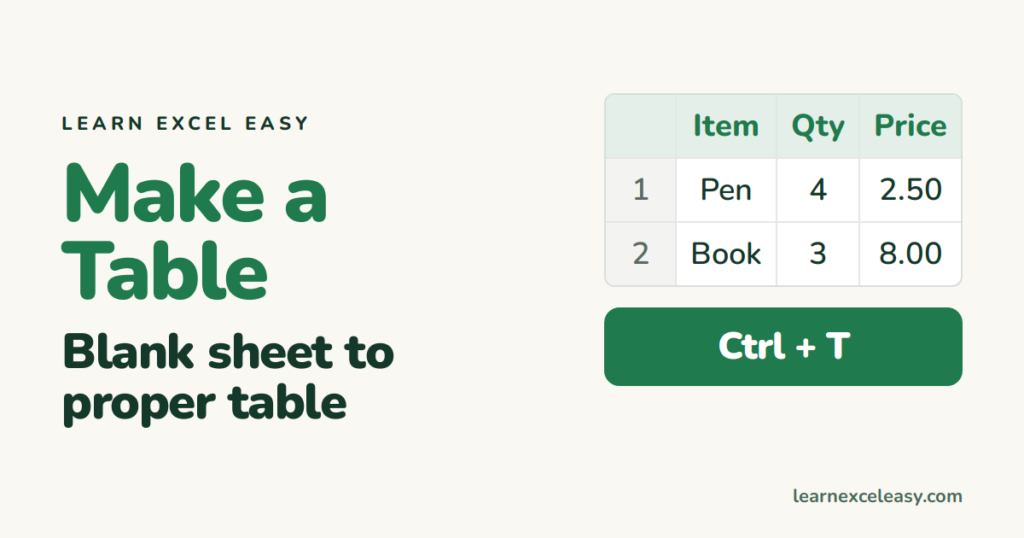
“Table” means two things in Excel: a tidy grid of data, and the Table feature that gives that grid superpowers. This lesson does both, from empty.
Step 1: headings
In row 1 type one heading per column: Item, Qty, Price, Total. One word each if you can, no blank headings.
Step 2: data
One record per row under the headings. No blank rows, no merged cells, no totals typed in the middle.
Step 3: make it a Table
- Click any cell in the data.
- Press Ctrl + T. Tick My table has headers. OK.
Stripes and filter arrows appear.
Step 4: a formula column
In the first Total cell type =[@Qty]*[@Price], Enter. Excel fills the whole column and keeps doing so for new rows.
Step 5: total row
Table Design › Total Row. Click the Total cell at the bottom › choose Sum.
Step 6: style
Table Design › Table Styles › pick one. Untick Filter Button if you don’t want the arrows.
Check it worked
Type a new row directly under the table. It joins the table — stripes, formula and total all update.
Sort and filter
Click a heading arrow › Sort A to Z, or untick values to filter. Lessons: sort, filter.
Print it
Ctrl + P › Fit Sheet on One Page. Repeat headings on every page via Page Layout › Print Titles.

20 years with spreadsheets and enterprise systems. Writes one short, plain-English Excel lesson a day. Got an Excel question? learnexceleasycom@gmail.com
