
Excel Basics
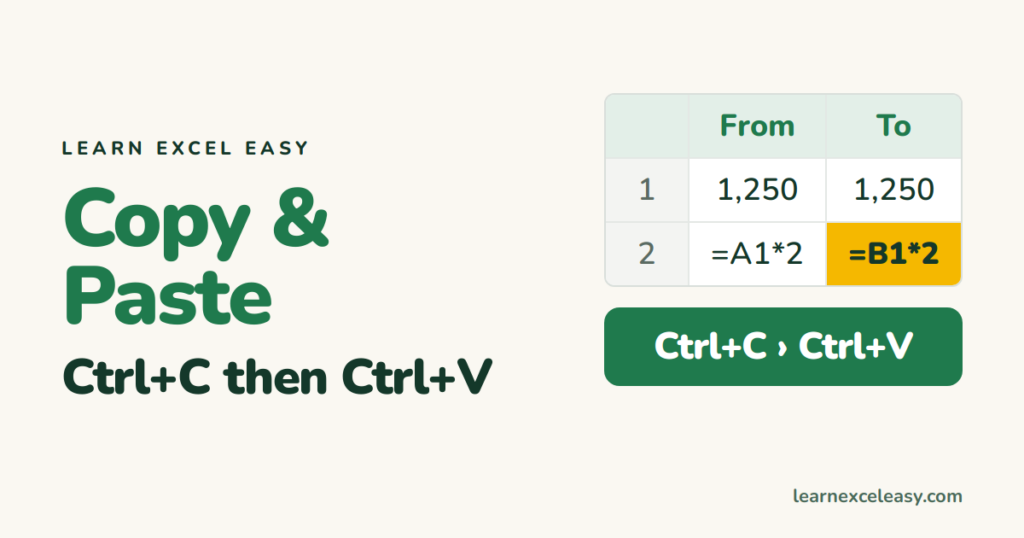
How to Copy and Paste in Excel (the right way for each job)
Copy and paste cells with Ctrl+C and Ctrl+V, paste values only, keep column widths, drag-copy with Ctrl, and copy formulas without the references moving.
Short, plain-English tutorials on formulas, shortcuts, charts and everyday Excel tasks. No jargon. One idea per post.
Start here Get Daily One Lesson
Copy and paste cells with Ctrl+C and Ctrl+V, paste values only, keep column widths, drag-copy with Ctrl, and copy formulas without the references moving.

Unhide a hidden worksheet from the tab menu, unhide all sheets in one go in Microsoft 365, and what to check when Unhide is greyed out.

Hide a worksheet from the tab menu, hide several at once, and stop other people from unhiding it with Protect Workbook. Formulas keep working on hidden sheets.
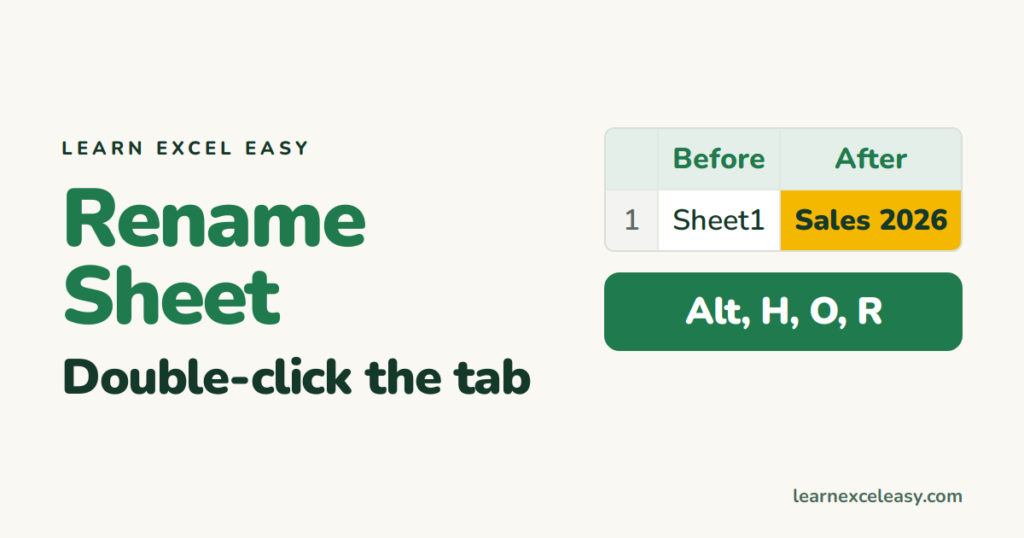
Rename a worksheet by double-clicking its tab, the right-click menu or Alt+H+O+R — plus the characters Excel won't allow and how renaming affects formulas.
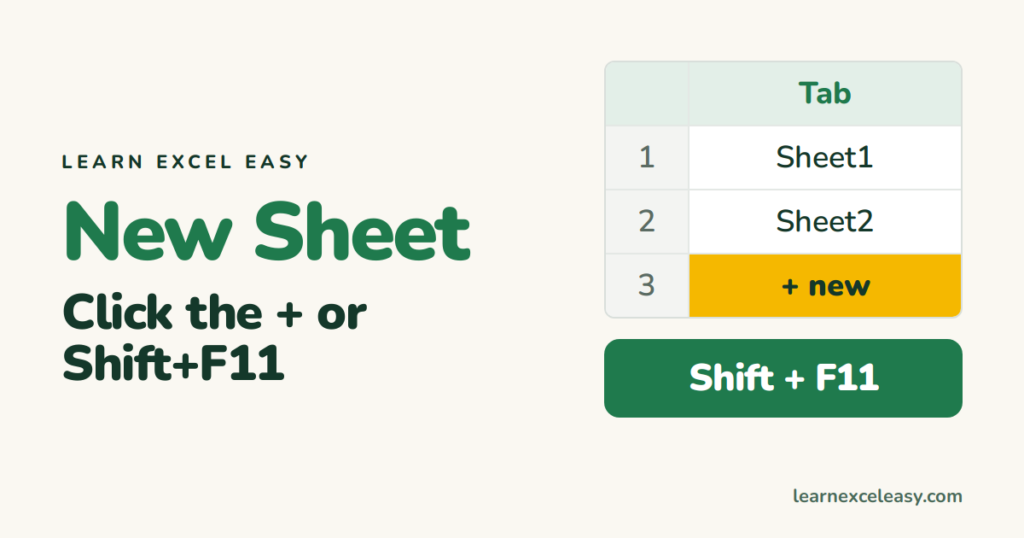
Insert a new worksheet with the + button, Shift+F11, the right-click menu or the ribbon — and how to add one in a specific place or add several at once.

Delete a worksheet from the tab menu or the ribbon, remove several at once, and what to do if you deleted the wrong one — because Ctrl+Z won't bring it back.
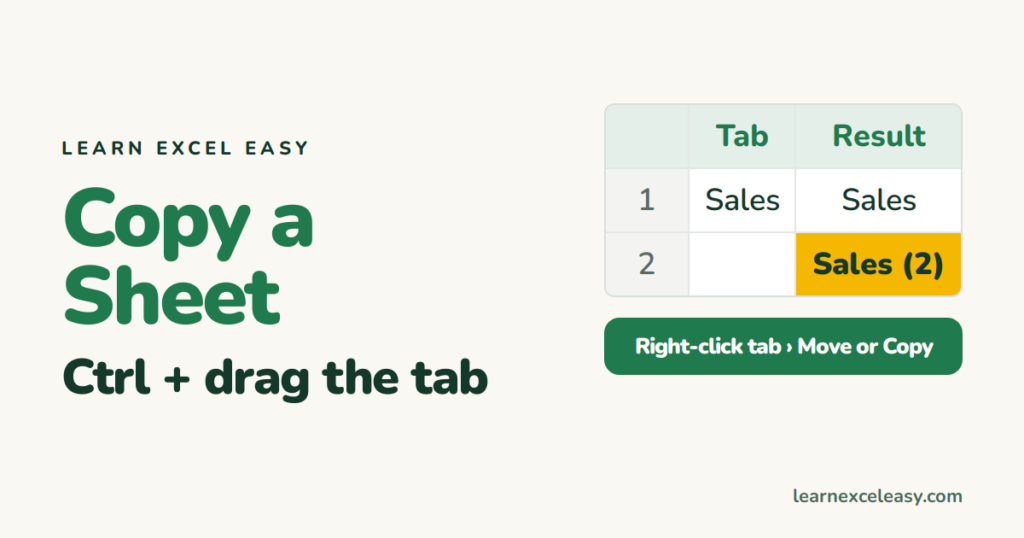
Copy a worksheet in two seconds with Ctrl+drag, or use Move or Copy to put the copy in another workbook. Formats, formulas and column widths all come along.
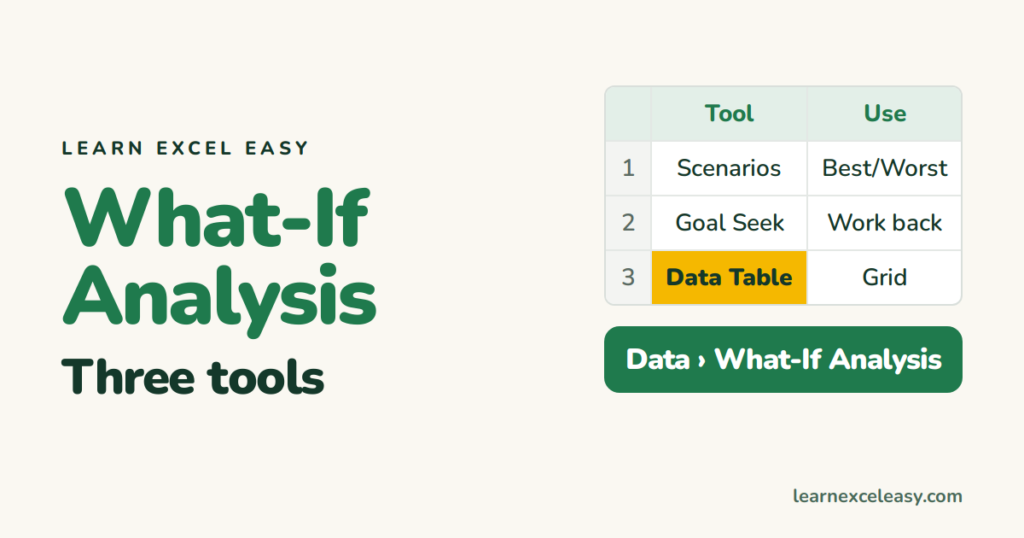
Excel's three What-If tools compared: Scenario Manager for named sets of inputs, Goal Seek to work backwards, and Data Tables to see many results at once. When to use each.
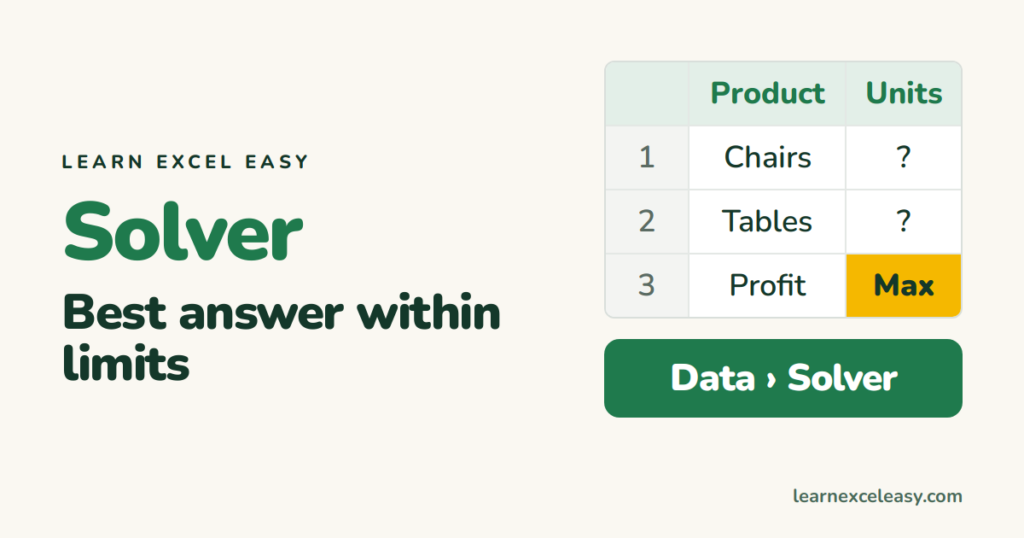
Solver finds the best combination of inputs — maximum profit, minimum cost — while respecting limits you set. Turning it on, a worked product-mix example, and fixing 'no feasible solution'.
