
How to Hide a Sheet in Excel (and hide it properly)
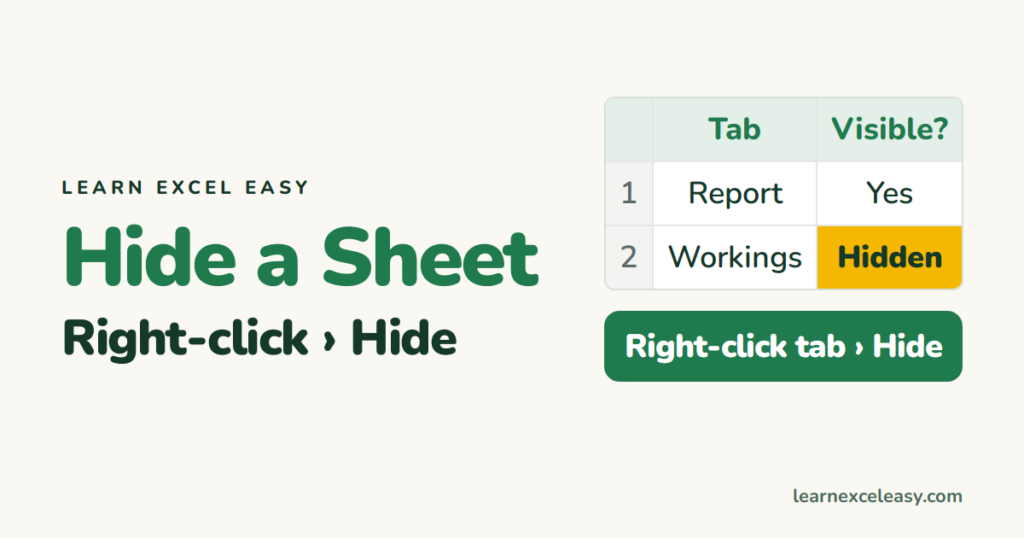
Hiding a sheet keeps lookup tables and workings out of the way. Formulas that use it still work.
Hide one sheet
Right-click the tab › Hide.
Hide several
Ctrl+click the tabs, then right-click › Hide. At least one sheet must stay visible.
From the ribbon
Home › Format › Hide & Unhide › Hide Sheet.
Stop people unhiding it
Anyone can right-click › Unhide. To block that:
- Review › Protect Workbook.
- Tick Structure, add a password, OK.
Now Unhide, Delete and Rename are greyed out for everyone without the password. Keep the password safe — see password protect Excel.
Very hidden (VBA)
In the VBA editor, set the sheet’s Visible property to 2 - xlSheetVeryHidden. It won’t appear in the Unhide list at all.
Getting it back: unhide sheets

20 years with spreadsheets and enterprise systems. Writes one short, plain-English Excel lesson a day. Got an Excel question? learnexceleasycom@gmail.com
