
Lock Cells in Excel: protect formulas, let people type elsewhere
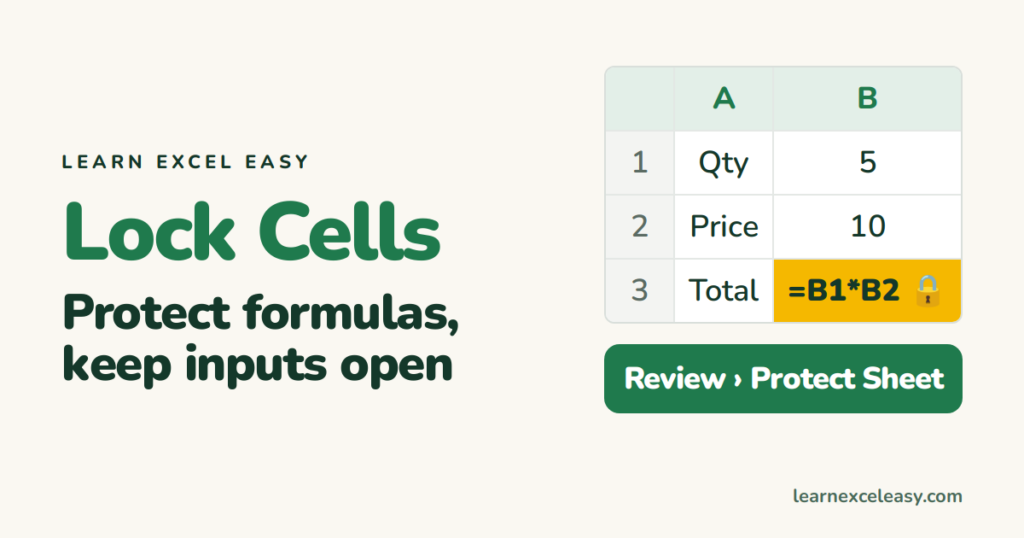
Locking a cell does nothing on its own. Every cell in Excel is already “locked” — the lock only kicks in when you protect the sheet. So the method is two steps: unlock the cells people may edit, then protect the sheet.
What you will make
A sheet where people can type in the yellow input cells but cannot touch the formulas.
Step 1: unlock the input cells
- Select the cells people are allowed to edit (hold Ctrl to select several).
- Press Ctrl + 1 › Protection tab.
- Untick Locked. OK.
Step 2: protect the sheet
- Review › Protect Sheet.
- Type a password if you want one (optional — leave blank to just prevent accidents).
- Leave the default ticks. OK.
Check it worked
Click a formula cell and type. Excel says the cell is protected. Click an input cell and type — it works.
Unprotect
Review › Unprotect Sheet, enter the password if you set one.
Select all formula cells at once
Press F5 › Special › Formulas › OK. Every formula is selected — handy to confirm they are all still locked.
Common mistake
Forgetting the password. Write it down. Excel cannot recover it for you.
Sheet protection stops accidents, not attackers. For real security, protect the file: password-protect the workbook.

20 years with spreadsheets and enterprise systems. Writes one short, plain-English Excel lesson a day. Got an Excel question? learnexceleasycom@gmail.com
