
How to Calculate Age in Excel from a Date of Birth
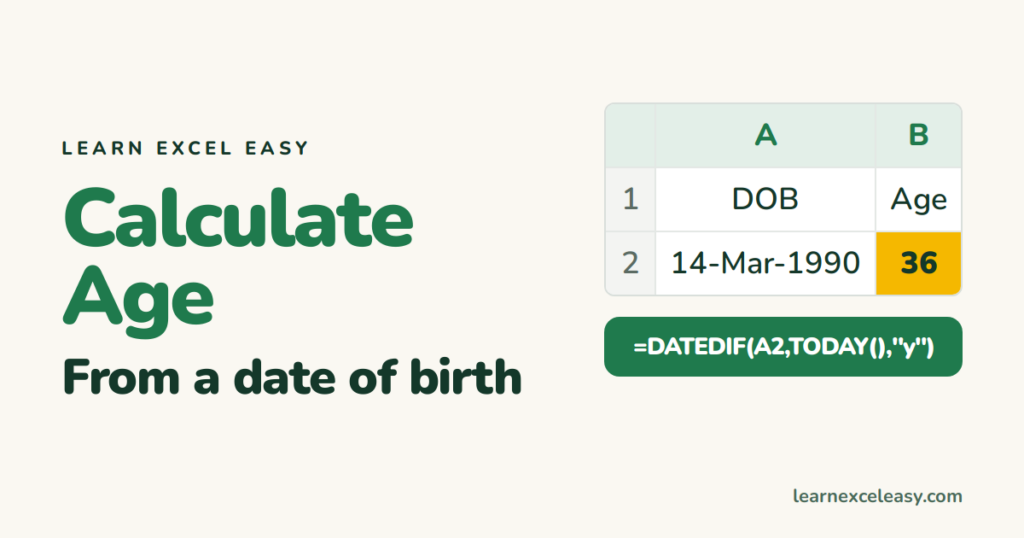
Age is the number of full years between the birthday and today. One function does exactly that.
Steps
- Date of birth in A2 (a real date, not text).
- Click B2. Type
=DATEDIF(A2, TODAY(), "y"). Enter.
Result: the age in whole years, correct even the day before a birthday.
Years and months
=DATEDIF(A2,TODAY(),"y") & " years, " & DATEDIF(A2,TODAY(),"ym") & " months"
Age on a specific date (not today)
The date in C2:
=DATEDIF(A2, C2, "y")
Age of a whole list
Drag B2 down. Then =AVERAGE(B:B) for the average age, =COUNTIF(B:B,">=60") for seniors.
Check it worked
Someone born exactly 30 years ago today shows 30. Born tomorrow 30 years ago shows 29.
Why not YEARFRAC or /365?
=(TODAY()-A2)/365 drifts because of leap years, and =INT(YEARFRAC(A2,TODAY())) can be off by one on the birthday itself. DATEDIF counts real calendar years.
Common mistake
#NUM! — the birth date is later than today (typo in the year). #VALUE! — the date is text; see convert text to date.

20 years with spreadsheets and enterprise systems. Writes one short, plain-English Excel lesson a day. Got an Excel question? learnexceleasycom@gmail.com
