
Excel Won’t Open? Fix it in this order
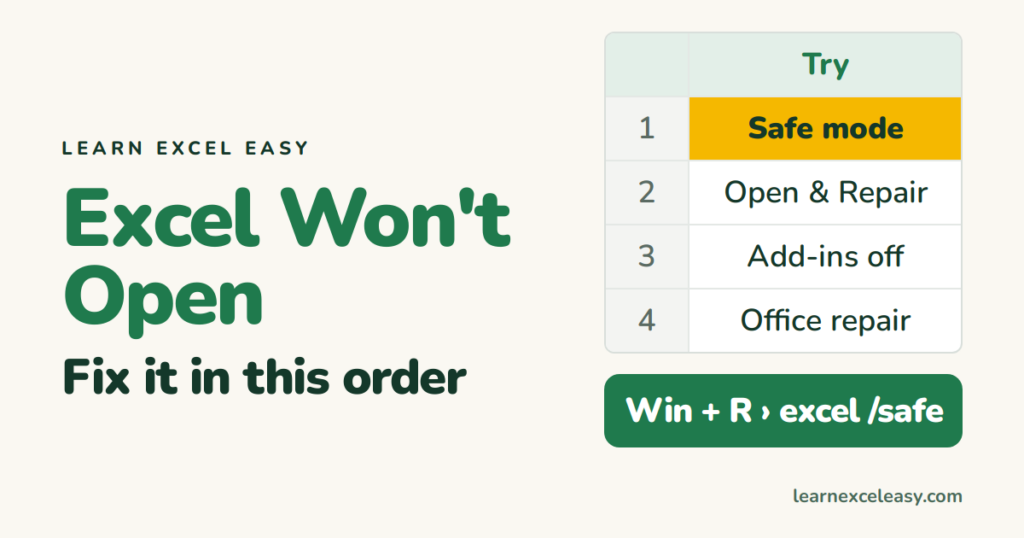
First work out which of three problems you have, then follow that list.
A. Excel itself will not start (or crashes at once)
- Safe mode. Press Win + R, type
excel /safe, Enter. If it opens, an add-in is the cause → step 3. - Restart the PC. Boring, fixes more than it should.
- Disable add-ins. In safe mode: File › Options › Add-ins › Manage: COM Add-ins › Go › untick all › OK. Restart Excel normally. Re-enable one at a time.
- Repair Office. Windows Settings › Apps › Microsoft 365 › Modify › Quick Repair. If that fails, Online Repair (takes a while, needs internet).
B. Excel opens but shows a blank grey window
- The window is off-screen or minimised. Hold Win and press an arrow key, or Win + Shift + Arrow to drag it to your monitor.
- File › Options › Advanced › General › untick Ignore other applications that use DDE. OK. Restart Excel.
- File › Options › Advanced › Display › tick Disable hardware graphics acceleration.
C. One file will not open
- Open Excel first, then File › Open › select the file › click the arrow on the Open button › Open and Repair › Repair.
- Downloaded file? Right-click › Properties › tick Unblock › OK.
- Still stuck: upload it to Google Drive, open with Sheets, download as .xlsx.
- Extension wrong? A .csv renamed .xlsx will not open. Check the real type.
Check it worked
Excel opens to the Start screen with the green bar and Blank workbook — and your file opens from File › Open.
Prevent it
Keep Office updated (File › Account › Update Options). Keep add-ins to the ones you use.

20 years with spreadsheets and enterprise systems. Writes one short, plain-English Excel lesson a day. Got an Excel question? learnexceleasycom@gmail.com
