
Excel Number Stored as Text: what the green triangle means and how to fix it
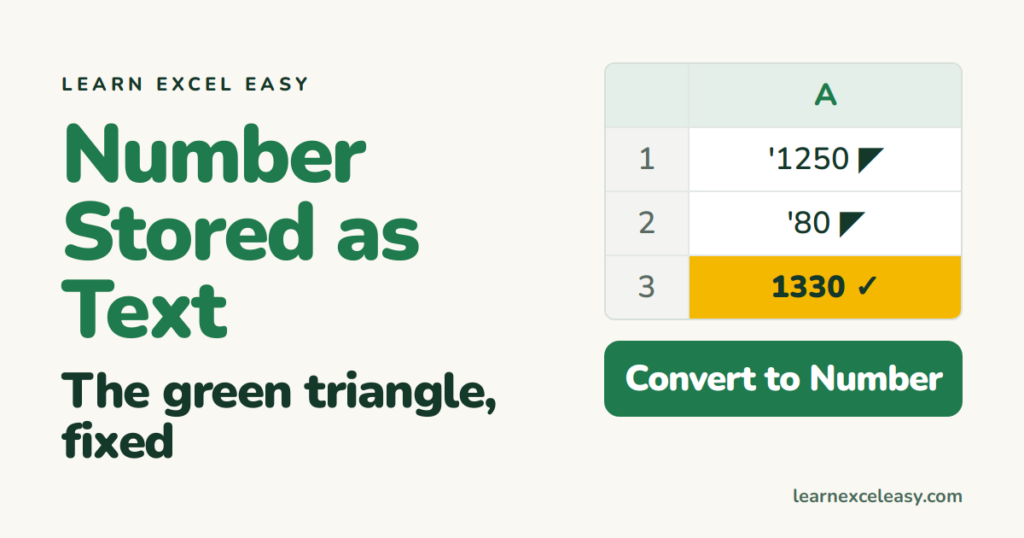
The small green triangle in a cell’s corner is Excel saying: this looks like a number, but I am treating it as words. SUM skips it, VLOOKUP cannot find it, sorting puts it in the wrong place.
Why it happens
- Data pasted from a website or PDF.
- A CSV import where the column was set to Text.
- Someone typed an apostrophe first:
'1250. - The cell was formatted as Text before the number was typed.
The one-click fix
- Select the cells (click the first, Shift + click the last).
- Click the yellow warning icon that appears beside the selection.
- Convert to Number.
Thousands of cells, or no triangle showing
- Type
1in an empty cell, copy it. - Select the text-numbers › right-click › Paste Special › Multiply › OK.
Or: select the column › Data › Text to Columns › Finish.
Check it worked
The numbers jump to the right side of the cells, the triangles vanish, and the status bar shows a Sum when you select them.
When you want text on purpose
Phone numbers, PIN codes, product codes with leading zeros should stay text. Leave them, and turn off the nagging: File › Options › Formulas › untick Numbers formatted as text. Or click the icon › Ignore Error.
Stop it happening
Import CSVs with Data › From Text/CSV and set number columns as numbers. See CSV to Excel. All four fixes with detail: convert text to number.

20 years with spreadsheets and enterprise systems. Writes one short, plain-English Excel lesson a day. Got an Excel question? learnexceleasycom@gmail.com
