
How to Open a CSV in Excel Correctly (columns, zeros and dates intact)
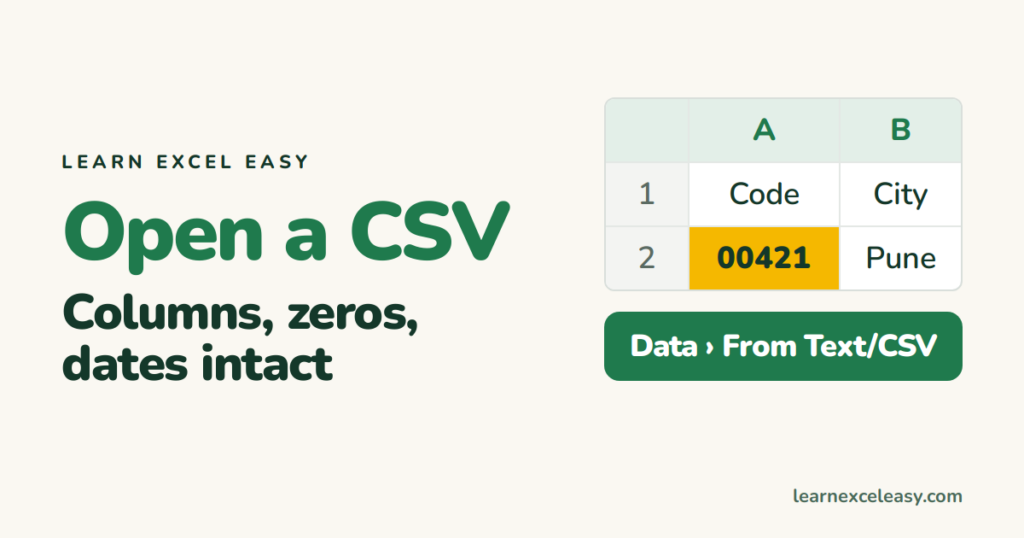
Double-clicking a CSV lets Excel guess everything. Usually fine, sometimes it eats your zeros. Three more clicks avoid it.
Steps
- Open Excel with a blank workbook.
- Data › From Text/CSV › pick the file.
- Preview: check Delimiter (Comma; change to Semicolon or Tab if it all sits in one column).
- Data Type Detection › Do not detect data types if you have codes with leading zeros.
- Load.
Everything landed in one column
The separator is not a comma. In step 3 try Semicolon, then Tab. If you already opened it: select column A › Data › Text to Columns › Delimited › tick the right separator.
Strange characters (é, ’)
Step 3: File Origin › 65001: Unicode (UTF-8).
Just a quick look
Double-click is fine when you only need to read. Don’t save over the original from Excel — that is when damage becomes permanent.
Keep working with it
File › Save As › Excel Workbook (.xlsx). A CSV cannot hold formatting, formulas or extra sheets.
Check it worked
Open the CSV in Notepad. A code that starts with 0 there must start with 0 in Excel. A date must be the same day and month.
Make CSVs always open this way
Right-click the CSV › Open with › Choose another app › Notepad › tick Always. Then CSVs open as text and you import them into Excel on purpose.

20 years with spreadsheets and enterprise systems. Writes one short, plain-English Excel lesson a day. Got an Excel question? learnexceleasycom@gmail.com
