
Excel Zoom Shortcut: zoom in, out, and back to 100% from the keyboard
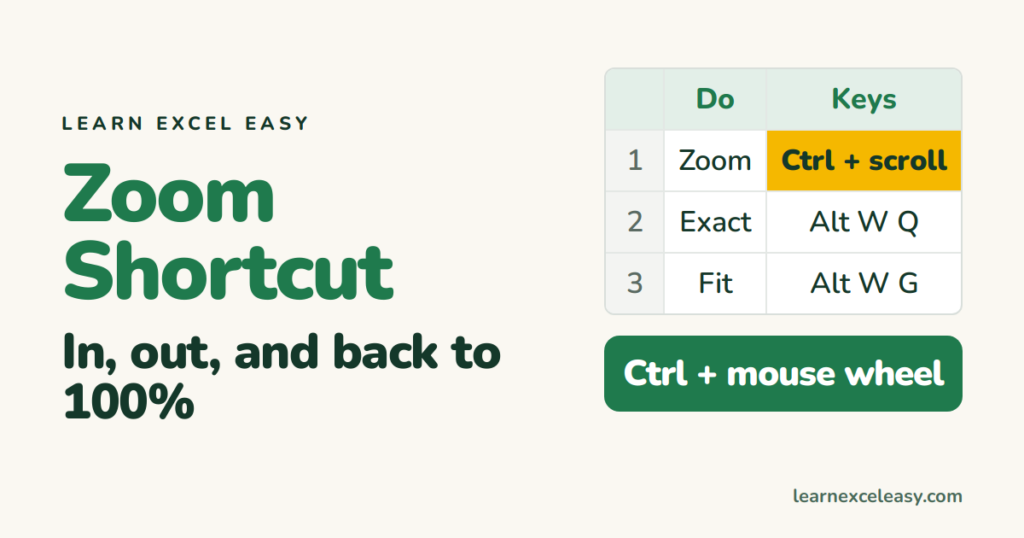
Excel has no single-key zoom, but three ways get you there fast.
Mouse wheel
Hold Ctrl and roll the wheel. Up = zoom in, down = zoom out, 10% per notch. Touchpad: Ctrl + pinch.
Exact zoom from the keyboard
Press Alt, W, Q (one after the other). The Zoom dialog opens. Type 100 in Custom, Enter. Or press the letter for a preset: 200, 100, 75, 50, 25.
Zoom to fit the selected cells
Select a range, then Alt, W, G. The selection fills the window. Great for presenting one table.
Back to 100%
Alt, W, J. Or click the 100% on the status bar.
Status bar slider
Bottom-right: the − and + buttons and the slider. Click the percentage to open the Zoom dialog.
Add a one-key zoom
File › Options › Quick Access Toolbar › add Zoom In and Zoom Out. If they sit in positions 1 and 2, Alt + 1 and Alt + 2 zoom.
Zoom does not affect printing
Screen zoom is only for you. For print size use Page Layout › Scale.
Check it worked
The percentage on the status bar changes as you go.
Set a default for new workbooks
Excel opens every new sheet at 100%. Prefer 120%? Zoom a blank workbook to 120%, save it as Book.xltx in your XLSTART folder — every new workbook starts there.

20 years with spreadsheets and enterprise systems. Writes one short, plain-English Excel lesson a day. Got an Excel question? learnexceleasycom@gmail.com
