
Excel SUBSTITUTE Function: replace text inside a formula
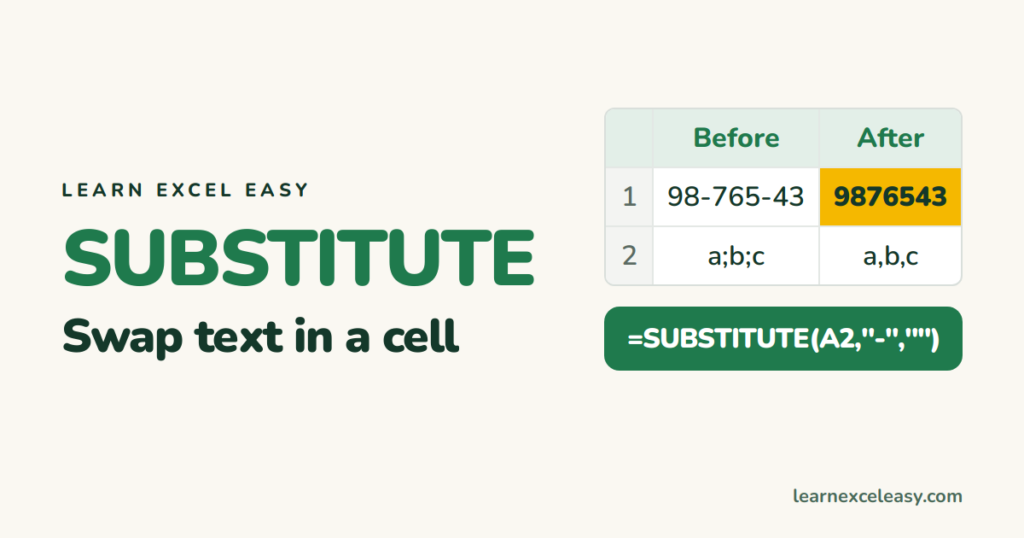
SUBSTITUTE replaces every copy of some text with something else — inside a formula, so the original stays untouched.
The formula
=SUBSTITUTE(text, old_text, new_text, [instance])
Everyday uses
| Job | Formula |
|---|---|
| Remove dashes from a phone number | =SUBSTITUTE(A2,"-","") |
| Semicolons to commas | =SUBSTITUTE(A2,";",",") |
| Remove all spaces | =SUBSTITUTE(A2," ","") |
| Replace line breaks with a space | =SUBSTITUTE(A2,CHAR(10)," ") |
Several replacements at once
Nest them — the inner one runs first:
=SUBSTITUTE(SUBSTITUTE(SUBSTITUTE(A2,"(",""),")",""),"-","")
“(98) 765-43” becomes “9876543”. For many unwanted characters, see remove special characters.
Only the 2nd occurrence
=SUBSTITUTE(A2,"-"," ",2)
“A-B-C” becomes “A-B C”.
Count how many times a word appears
=(LEN(A2)-LEN(SUBSTITUTE(A2,",","")))/LEN(",")
Counts commas. Add 1 to count items in a comma list.
SUBSTITUTE vs REPLACE vs Find & Replace
- SUBSTITUTE — replace by what the text is.
- REPLACE — replace by position (characters 1–3).
- Ctrl+H — one-off fix on the data itself. See Find and Replace.
Result looks like a number but won’t add
SUBSTITUTE always returns text. Wrap it: =VALUE(SUBSTITUTE(A2,",","")). See VALUE.

20 years with spreadsheets and enterprise systems. Writes one short, plain-English Excel lesson a day. Got an Excel question? learnexceleasycom@gmail.com
