
How to Remove the First Character in Excel (or the first few)
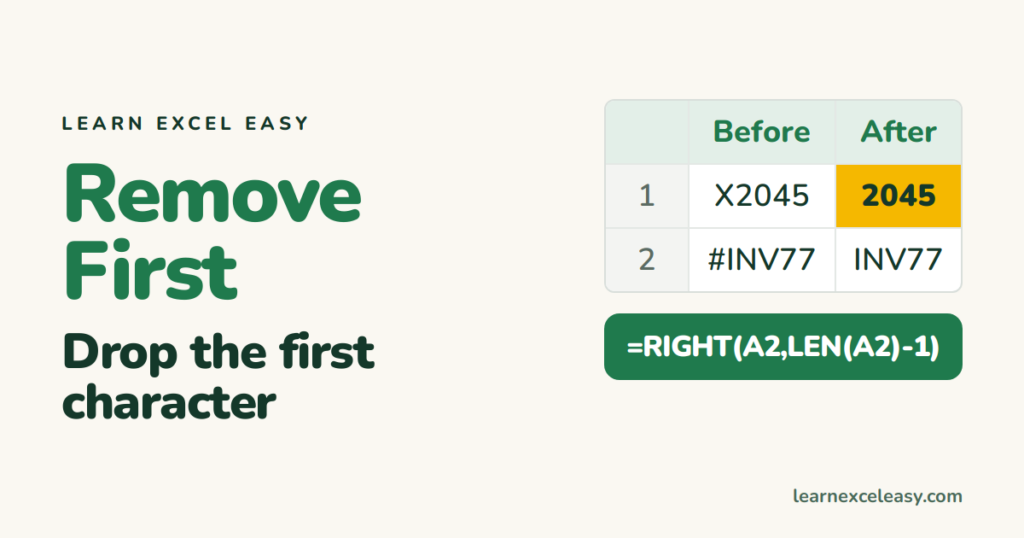
Codes like “X2045” where you only want “2045”. Three ways, pick one.
1. RIGHT and LEN
=RIGHT(A2,LEN(A2)-1)
LEN counts the characters (5); take all but one from the right (4): 2045.
2. REPLACE (easier to read)
=REPLACE(A2,1,1,"")
Starting at character 1, replace 1 character with nothing.
Remove the first 3 characters
=REPLACE(A2,1,3,"")
or =MID(A2,4,100) — start at character 4 and take the rest.
3. Flash Fill
Type the cleaned value next to the first row, then Ctrl+E in the cell below. Good for one-offs. See Flash Fill.
Only if it is a certain character
Remove a leading “#” but leave other values alone:
=IF(LEFT(A2)="#",REPLACE(A2,1,1,""),A2)
Leading spaces?
Use =TRIM(A2) instead — it removes all extra spaces. See remove spaces.
The result is a number stored as text
“2045” from these formulas is text. Wrap in VALUE if you need to add it up: =VALUE(REPLACE(A2,1,1,"")).
The end instead: remove the last character

20 years with spreadsheets and enterprise systems. Writes one short, plain-English Excel lesson a day. Got an Excel question? learnexceleasycom@gmail.com
