
How to Average Time in Excel
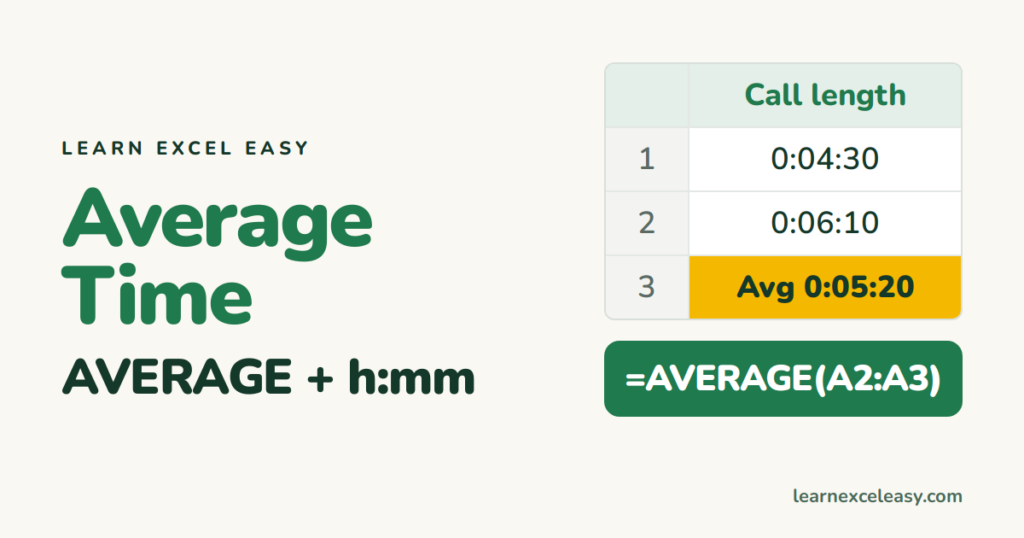
The formula
=AVERAGE(B2:B100)
Then format the result: Ctrl+1 › Custom › h:mm for clock times or [h]:mm:ss for durations. Without a format you see a decimal like 0.22.
Average in minutes
=AVERAGE(B2:B100)*1440
Format as Number. 1440 = minutes in a day. For hours, multiply by 24.
With a condition
=AVERAGEIF(A2:A100,"Asha",B2:B100)
See AVERAGEIF.
Times that cross midnight
Averaging 23:00 and 01:00 gives 12:00 — wrong. Add a day to early times first:
=MOD(AVERAGE(IF(B2:B10<TIME(12,0,0),B2:B10+1,B2:B10)),1)
Treats anything before noon as the next day, then MOD brings it back to a clock time.
Average of durations from start/end
=AVERAGE(C2:C100-B2:B100)
See time difference.
Problems
- #DIV/0! — no numeric times in the range; they’re text. Convert with TIMEVALUE.
- Ignoring zeros —
=AVERAGEIF(B2:B100,">0").
Totals: add time

20 years with spreadsheets and enterprise systems. Writes one short, plain-English Excel lesson a day. Got an Excel question? learnexceleasycom@gmail.com
