
CSV to Excel: open it without breaking the numbers
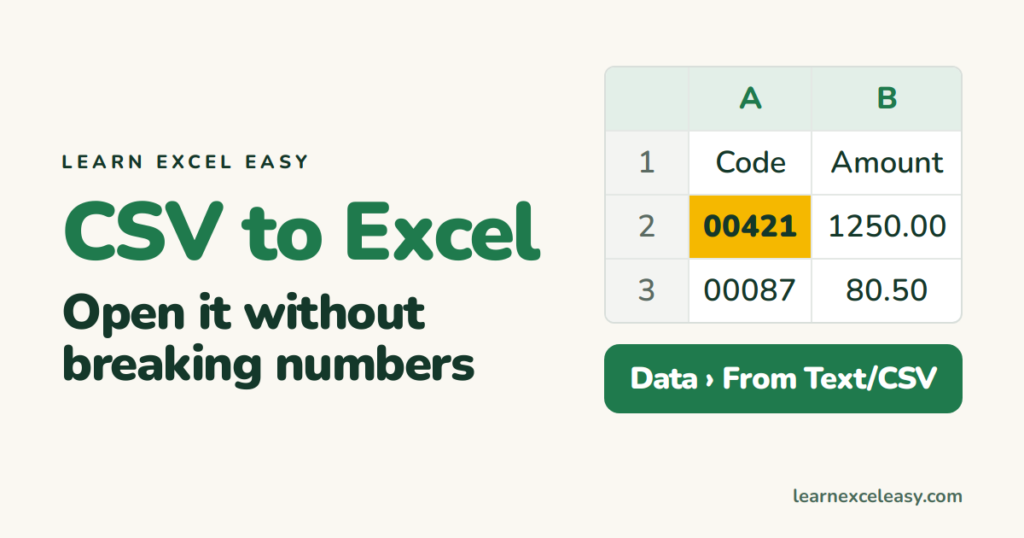
Double-clicking a CSV usually works — until phone numbers lose their leading zeros or 03/04 becomes 4 March. Importing it properly takes three more clicks and avoids all of that.
Steps
- Open a blank workbook. Data › From Text/CSV.
- Pick the file. Excel shows a preview.
- Check the Delimiter — usually Comma. If everything sits in one column, change it to Semicolon or Tab.
- Check Data Type Detection. For codes and phone numbers pick Do not detect data types so zeros survive.
- Click Load.
The data lands as a Table on a new sheet.
Save it as a real Excel file
File › Save As › type Excel Workbook (.xlsx). A CSV cannot hold formulas, formatting or more than one sheet — everything you add is lost if you keep saving as CSV.
Check it worked
Find a code that starts with 0 in the original file (open it in Notepad). It must still start with 0 in Excel. Find a date — it must be the right day and month.
Already opened it and the zeros are gone?
Close without saving and import as above. Once saved, the zeros are not coming back.
Numbers show as text (left-aligned, green triangle)
Select the column, click the warning icon › Convert to Number.
Strange characters (é, ’)
In the import preview, set File Origin to 65001: Unicode (UTF-8).

20 years with spreadsheets and enterprise systems. Writes one short, plain-English Excel lesson a day. Got an Excel question? learnexceleasycom@gmail.com
