
Excel AVERAGE Formula: the mean, and averages that skip zeros
AVERAGE adds the numbers and divides by how many there are. Simple — with one trap around zeros.
Steps
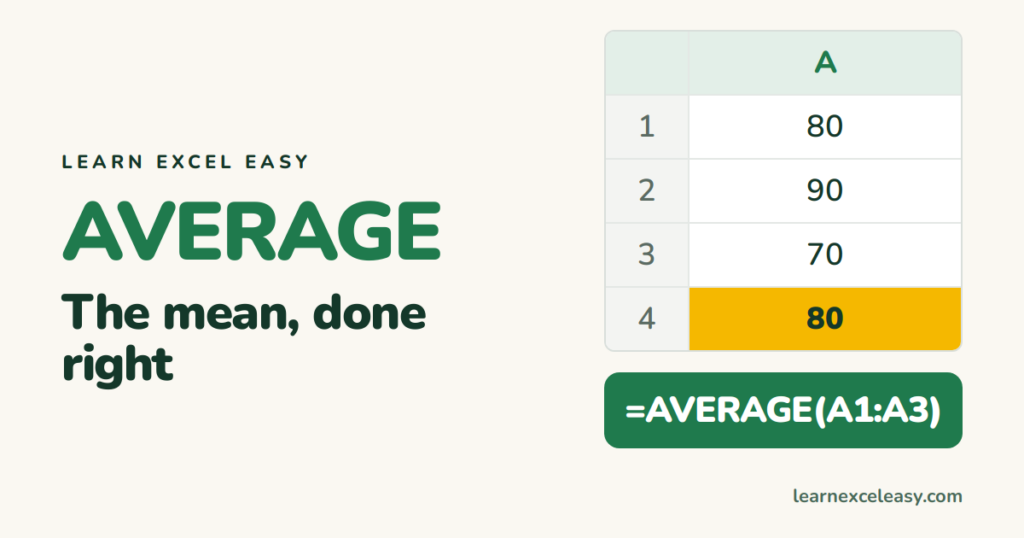
- Numbers in A1:A3.
- Click A4. Type
=AVERAGE(A1:A3). Enter.
Result: 80 for 80, 90, 70.
Blank vs zero
A blank cell is ignored: 80, 90, blank → 85. A zero counts: 80, 90, 0 → 56.7. If missing values are typed as 0, your average is wrong.
Average that skips zeros
=AVERAGEIF(A1:A10, "<>0")
Average for one group only
Names in A, scores in B:
=AVERAGEIF(A:A, "Ana", B:B)
When the mean lies
Salaries 30, 32, 35, 400 — the average is 124, which nobody earns. Use =MEDIAN(A1:A4) → 33.5, the middle value.
Check it worked
Select the numbers. The status bar at the bottom shows Average — it should match.
Common mistake
#DIV/0! — the range has no numbers at all, or they are text. Convert them to numbers.

20 years with spreadsheets and enterprise systems. Writes one short, plain-English Excel lesson a day. Got an Excel question? learnexceleasycom@gmail.com
