
Excel IF Cell Contains Text: flag rows with a word in them
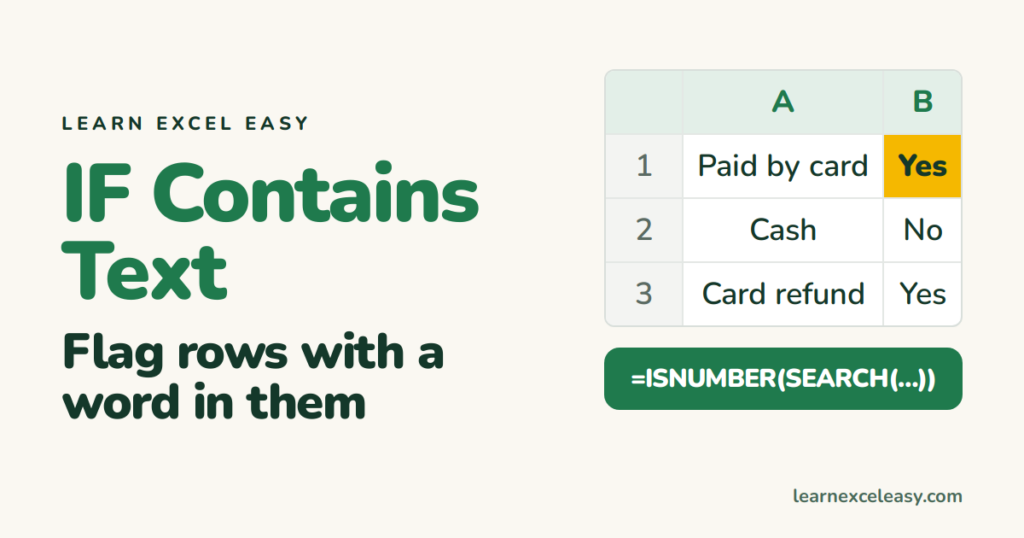
=IF(A1="card", ...) only works when the whole cell is exactly “card”. To check whether the word appears anywhere in the cell, you need SEARCH.
The formula
=IF(ISNUMBER(SEARCH("card", A1)), "Yes", "No")
How it works
SEARCH("card", A1)returns the position of “card” inside A1, or an error if it is not there.ISNUMBER(...)turns that into TRUE (found) or FALSE (error).IFturns TRUE/FALSE into your words.
Steps
- Text in column A.
- Click B1, type the formula, Enter, drag down.
| A | B | |
|---|---|---|
| 1 | Paid by card | Yes |
| 2 | Cash | No |
| 3 | Card refund | Yes |
Capitals
SEARCH ignores case — “Card” and “card” both match. For an exact-case match use FIND instead of SEARCH.
Point at a cell for the word
=IF(ISNUMBER(SEARCH($D$1, A1)), "Yes", "No")
Either of two words
=IF(OR(ISNUMBER(SEARCH("card",A1)), ISNUMBER(SEARCH("upi",A1))), "Digital", "Cash")
Count how many rows contain the word
=COUNTIF(A:A, "*card*")
Check it worked
Type “CARD” in capitals in a new row. It should still say Yes.

20 years with spreadsheets and enterprise systems. Writes one short, plain-English Excel lesson a day. Got an Excel question? learnexceleasycom@gmail.com
