
Nested IF in Excel: three or more outcomes without the mess
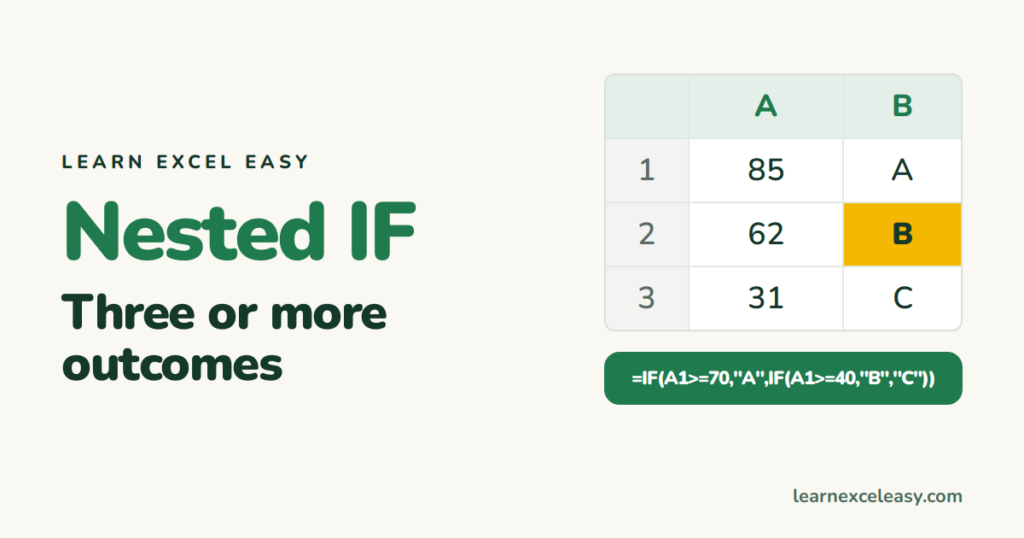
One IF gives two outcomes. For three or more, put another IF in the “no” slot. That is a nested IF.
What you will make
Grades: 70 and over is A, 40–69 is B, under 40 is C.
Steps
- Scores in column A.
- Click B1. Type:
=IF(A1>=70, "A", IF(A1>=40, "B", "C"))
Read it left to right: 70 or more? A. Otherwise, 40 or more? B. Otherwise C.
The rule that keeps it straight
Test from the highest value down. Each IF only sees the scores the previous one rejected, so “>=40” really means 40–69.
Counting brackets
Two IFs, two closing brackets at the end. Three IFs, three. Excel colours matching pairs while you type.
The easier way: IFS (Excel 2019 and newer)
=IFS(A1>=70, "A", A1>=40, "B", TRUE, "C")
Pairs of test, result. The final TRUE is the catch-all.
Check it worked
Type 70 → A. 69 → B. 40 → B. 39 → C. Boundary values catch most mistakes.
Common mistakes
Testing low to high. IF(A1>=40,"B",IF(A1>=70,"A",...)) never reaches A — 85 is already ≥40.
More than 4 levels. Use a lookup table with XLOOKUP match mode -1 or VLOOKUP with TRUE instead.

20 years with spreadsheets and enterprise systems. Writes one short, plain-English Excel lesson a day. Got an Excel question? learnexceleasycom@gmail.com
