
Remove Spaces in Excel: leading, trailing, all, or double
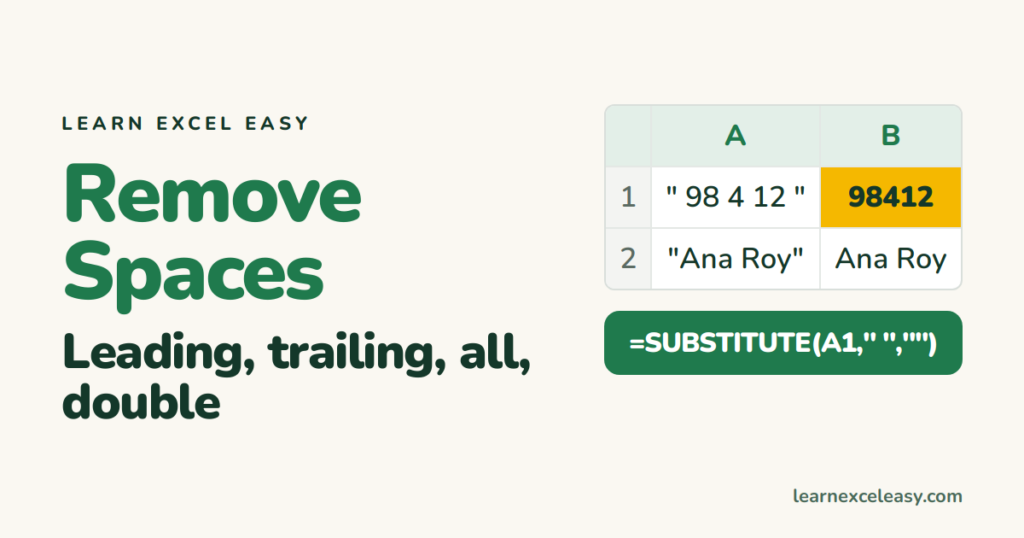
Which spaces do you want gone? Pick the row that matches.
| Want to remove | Use |
|---|---|
| Spaces at the start and end, and doubles inside | =TRIM(A1) |
| Every single space | =SUBSTITUTE(A1, " ", "") |
| Spaces in the whole sheet, once | Ctrl + H |
| The space that will not go | CHAR(160) trick below |
Steps: TRIM (the usual fix)
- Click B1. Type
=TRIM(A1). Enter. Drag down. - Copy column B, right-click column A › Paste Special › Values. Delete B.
Full lesson: TRIM.
Steps: remove ALL spaces (phone numbers, codes)
=SUBSTITUTE(A1, " ", "")
“98 4 12” → “98412”. Wrap in VALUE if you need a number: =VALUE(SUBSTITUTE(A1," ","")).
Steps: Find and Replace (no formula)
- Select the cells. Press Ctrl + H.
- Find what: press the space bar once. Replace with: leave empty.
- Replace All.
Removes every space, including the ones between words.
The space that survives everything
Text pasted from websites often has non-breaking spaces (character 160). TRIM ignores them.
=TRIM(SUBSTITUTE(A1, CHAR(160), " "))
Check it worked
=LEN(A1) before and after. The count must drop.

20 years with spreadsheets and enterprise systems. Writes one short, plain-English Excel lesson a day. Got an Excel question? learnexceleasycom@gmail.com
