
Excel Strikethrough Shortcut: Ctrl+5 (and strike through automatically)
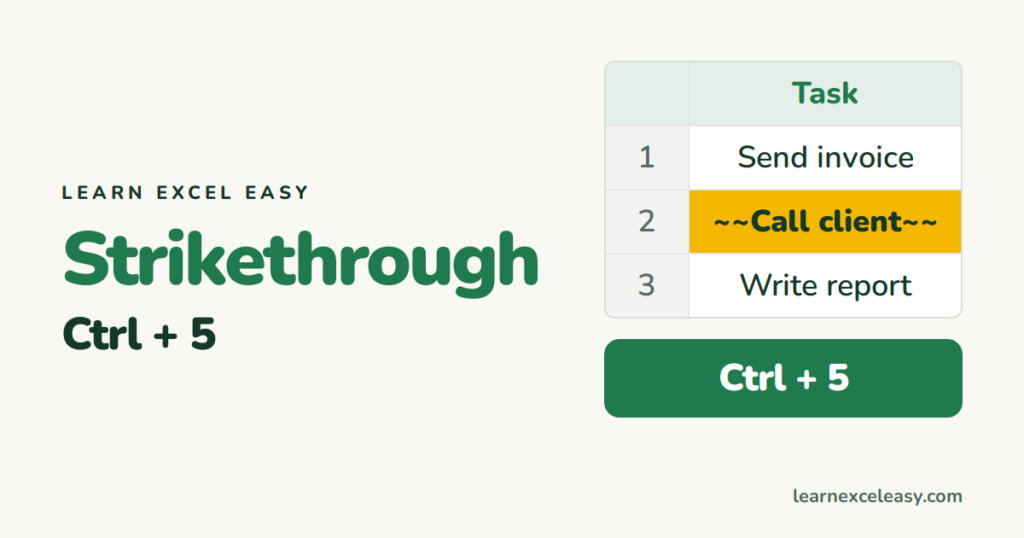
There is no strikethrough button on the ribbon, but the shortcut is one key.
Steps
- Select the cell or cells.
- Press Ctrl + 5.
Press Ctrl + 5 again to remove it. Mac: ⌘ + Shift + X.
Without the shortcut
Ctrl + 1 › Font tab › tick Strikethrough.
Strike through part of a cell
Double-click the cell, select the words, press Ctrl + 5. Only those words are struck.
Strike through done tasks automatically
Tasks in column A, a Done column in B with Yes/No or a checkbox:
- Select A2:A100. Home › Conditional Formatting › New Rule › Use a formula.
- Type
=$B2="Yes"(or=$B2=TRUEfor checkboxes). - Format › Font › Strikethrough, and grey text if you like. OK, OK.
Type Yes next to a task and it strikes itself out.
Add a strikethrough button to the toolbar
File › Options › Quick Access Toolbar › choose Commands Not in the Ribbon › Strikethrough › Add.
Check it worked
The text shows a line through its middle. Click the cell: the Font section on the Home tab shows nothing special — strikethrough only appears in the Ctrl + 1 dialog.

20 years with spreadsheets and enterprise systems. Writes one short, plain-English Excel lesson a day. Got an Excel question? learnexceleasycom@gmail.com
