
How to Count Cells with Text in Excel (any text, or specific text)
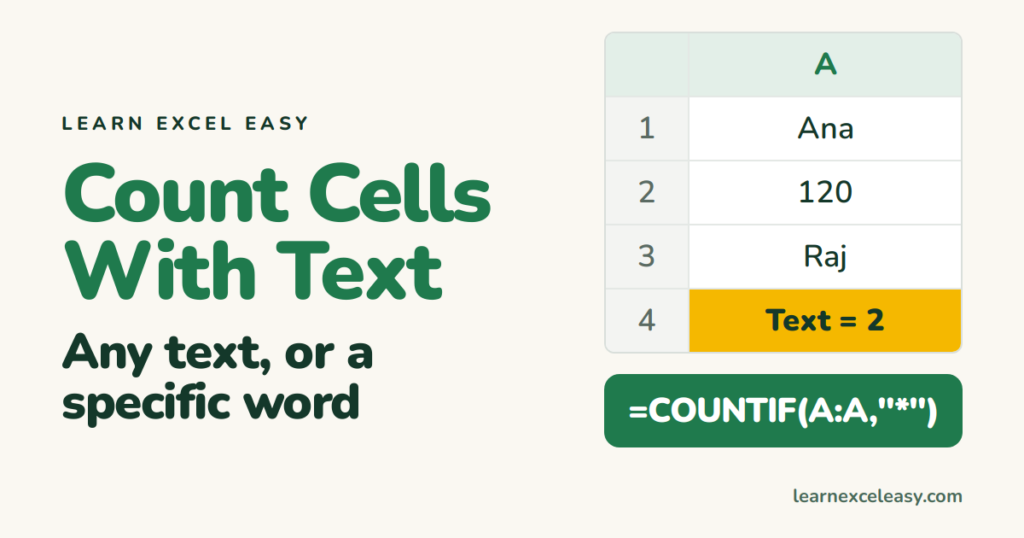
Three slightly different questions, three formulas. Pick the one you mean.
Count cells that contain any text
=COUNTIF(A1:A100, "*")
The * wildcard matches any text. Numbers, dates and blanks are not counted.
| A | |
|---|---|
| 1 | Ana |
| 2 | 120 |
| 3 | Raj |
Result: 2.
Count cells with specific text
=COUNTIF(A1:A100, "Ana")
Contains the word anywhere: =COUNTIF(A1:A100, "*Ana*"). Case is ignored.
Count non-empty cells (text and numbers)
=COUNTA(A1:A100)
Count only numbers
=COUNT(A1:A100)
Steps
- Click an empty cell outside the range.
- Type the formula you need. Enter.
Check it worked
COUNTA should equal COUNT plus your text count, if there are no blanks or errors in the range.
Common mistakes
A cell with a single space counts as text. It looks empty but “*” matches it. Clean with TRIM or Find and Replace.
A formula that returns “” counts as text with COUNTA but not with COUNTIF “*”? Actually COUNTIF “*” does count it too. Use =SUMPRODUCT(--(LEN(TRIM(A1:A100))>0)) to count only cells with real characters.

20 years with spreadsheets and enterprise systems. Writes one short, plain-English Excel lesson a day. Got an Excel question? learnexceleasycom@gmail.com
