
How to Open the VBA Editor in Excel (Alt+F11) and find your macro
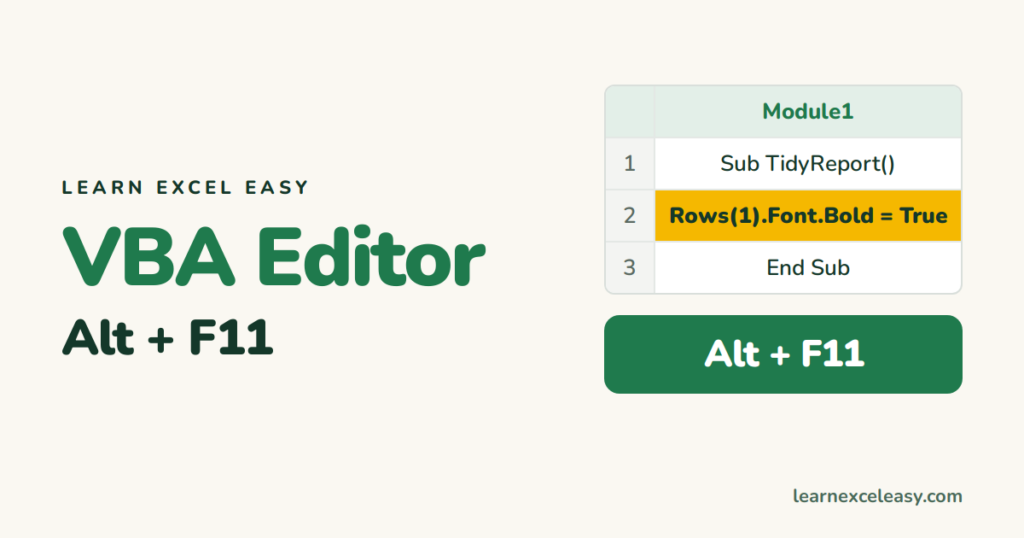
The VBA editor is a separate window where macro code lives. You do not need to write code to use it — reading a recorded macro is the best way to learn what one does.
Open it
Press Alt + F11. Or Developer tab › Visual Basic. (No Developer tab? Right-click the ribbon › Customize the Ribbon › tick Developer.)
Mac: Option + F11, or Tools › Macro › Visual Basic Editor.
Find your macro
- On the left, the Project panel lists open workbooks. (Missing? View › Project Explorer, or Ctrl + R.)
- Expand your workbook › Modules › double-click Module1.
Recorded macros land in Module1. The code appears on the right, starting Sub YourMacroName() and ending End Sub.
Read it
Each line is one action you performed. Rows("1:1").Font.Bold = True — you made row 1 bold. Change True to False and the macro now un-bolds.
Run it from here
Click anywhere inside the Sub, press F5. Or F8 to run one line at a time and watch the sheet change — the best way to understand a macro.
Go back to Excel
Alt + F11 again, or just click the Excel window. The editor stays open behind it.
Check it worked
You see Module1 with a Sub in it. If Modules is missing, no macro has been recorded in this workbook yet.
Common mistake
Editing the code in a .xlsx file — it will not be saved. Save as .xlsm first.

20 years with spreadsheets and enterprise systems. Writes one short, plain-English Excel lesson a day. Got an Excel question? learnexceleasycom@gmail.com
