
How to Separate Data in a Cell in Excel (names, addresses, codes)
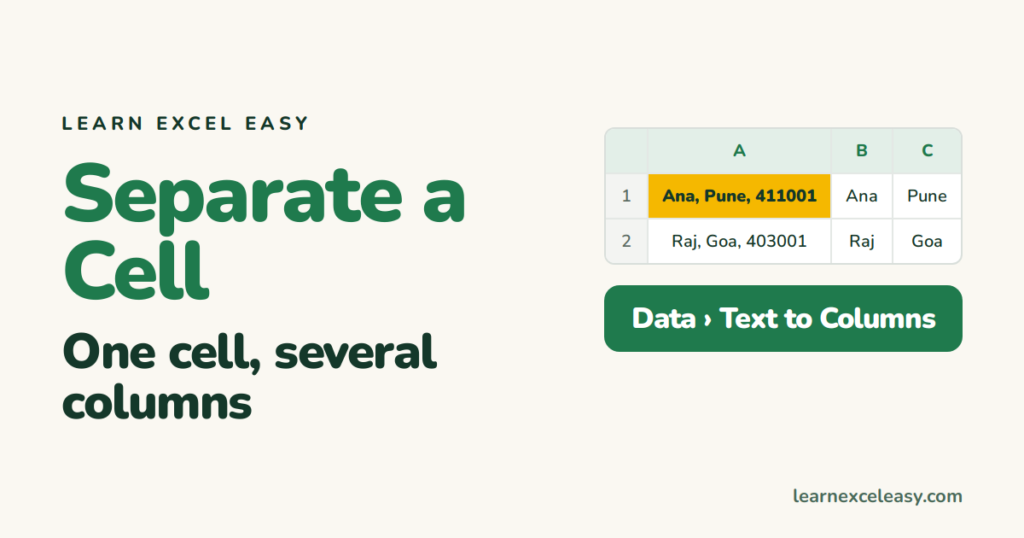
“Ana, Pune, 411001” in one cell needs to become three columns. Pick the method by how the pieces are separated.
Which method
| Your data | Use |
|---|---|
| Same separator every time (comma, space, dash) | Text to Columns |
| No clean separator, but a visible pattern | Flash Fill |
| Needs to update when the source changes | TEXTSPLIT formula |
Text to Columns
- Select the cells. Check the columns to the right are empty.
- Data › Text to Columns › Delimited › Next.
- Tick Comma (and Space if there is a space after each comma — tick Treat consecutive delimiters as one). Next.
- Click the PIN column in the preview › set it to Text so zeros survive. Finish.
Flash Fill
- In B1 type
Ana. In B2 start typingRaj— Excel greys in the rest. Press Enter. Or click B2 and press Ctrl + E. - Repeat in column C for the city.
TEXTSPLIT (Excel 365)
=TEXTSPLIT(A1, ", ")
Spills into as many columns as there are pieces. Older Excel: split a cell has the LEFT/MID formulas.
Check it worked
Scroll to the longest entry. Every piece landed in its own column; nothing was cut off.
Common mistake
A comma inside a piece (“Roy, Ana”) creates an extra column. Look at the preview before Finish.

20 years with spreadsheets and enterprise systems. Writes one short, plain-English Excel lesson a day. Got an Excel question? learnexceleasycom@gmail.com
