
Add Months to a Date in Excel (EDATE, and end-of-month)
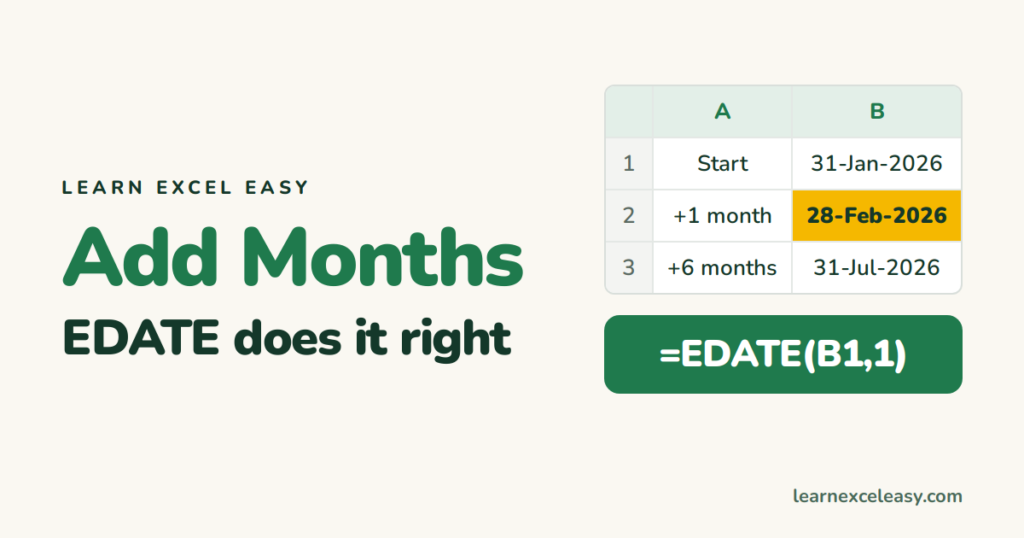
Adding 30 days is not adding a month. EDATE adds real calendar months and handles short months for you.
Steps
- Start date in B1.
- Click B2. Type
=EDATE(B1, 6). Enter. - If a number appears, format the cell as Date (Ctrl + Shift + 3).
31 Jan + 6 months = 31 Jul. 31 Jan + 1 month = 28 Feb (EDATE clips to the last valid day).
Subtract months
=EDATE(B1, -3)
Last day of the month, N months on
=EOMONTH(B1, 2)
Two months after 15 Jan → 31 Mar. EOMONTH(B1, 0) is the end of the same month.
First day of next month
=EOMONTH(B1, 0) + 1
Add years, days, or weeks
| Add | Formula |
|---|---|
| 1 year | =EDATE(B1, 12) |
| 45 days | =B1 + 45 |
| 2 weeks | =B1 + 14 |
| 10 working days | =WORKDAY(B1, 10) |
Renewal dates for a whole list
Start dates in column A, term in months in column B: C2 =EDATE(A2, B2), drag down. Highlight the ones due in 30 days: Conditional Formatting › formula =AND(C2>=TODAY(), C2<=TODAY()+30).
Check it worked
=EDATE(DATE(2026,1,31), 1) must give 28-Feb-2026, not 3-Mar.
Common mistake
=B1 + 30 for “one month”. From 31 Jan that gives 2 Mar. Use EDATE.

20 years with spreadsheets and enterprise systems. Writes one short, plain-English Excel lesson a day. Got an Excel question? learnexceleasycom@gmail.com
