
AVERAGEIF in Excel: average only the rows that match
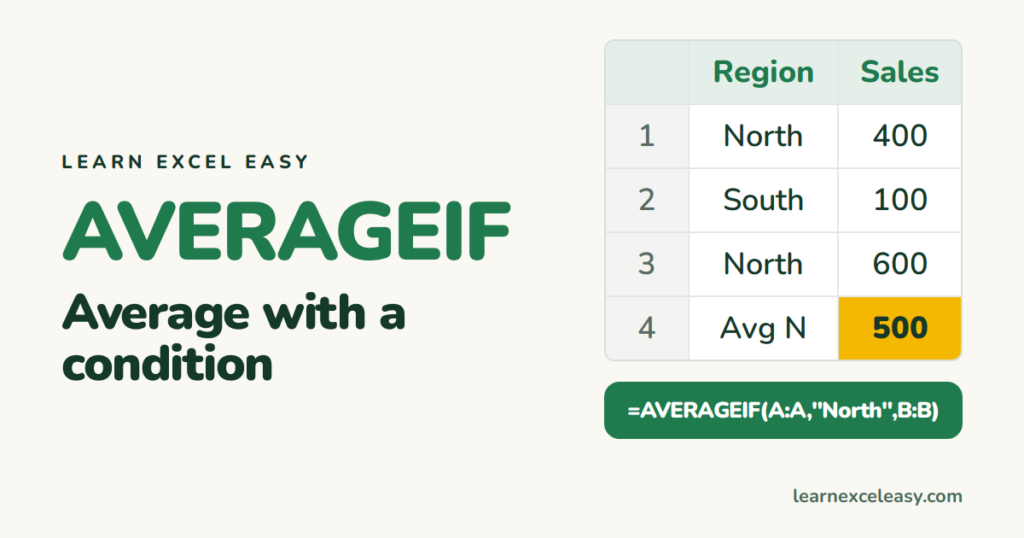
AVERAGEIF works like AVERAGE, but only on the rows where a condition is true.
The formula
=AVERAGEIF(range, criteria, [average_range])
- range — where to check the condition.
- criteria — what to look for.
- average_range — the numbers to average. Leave it out if they are in range itself.
Example: average sales for North
=AVERAGEIF(A2:A10,"North",B2:B10)
North rows have 400 and 600, so the result is 500.
Useful versions
- Ignore zeros:
=AVERAGEIF(B2:B10,"<>0")— the most-searched trick of all. - Above a number:
=AVERAGEIF(B2:B10,">100") - Condition in a cell:
=AVERAGEIF(A2:A10,E1,B2:B10) - Text contains:
=AVERAGEIF(A2:A10,"*pen*",B2:B10)— asterisks are wildcards.
Two or more conditions: AVERAGEIFS
=AVERAGEIFS(B2:B10, A2:A10,"North", C2:C10,"Paid")
Note the order flips: the numbers to average come first, then the pairs of range and condition.
#DIV/0! error
No row matched, so there is nothing to average. Wrap it: =IFERROR(AVERAGEIF(...),0). More in IFERROR.

20 years with spreadsheets and enterprise systems. Writes one short, plain-English Excel lesson a day. Got an Excel question? learnexceleasycom@gmail.com
