
Excel OFFSET Function: a range that moves or grows
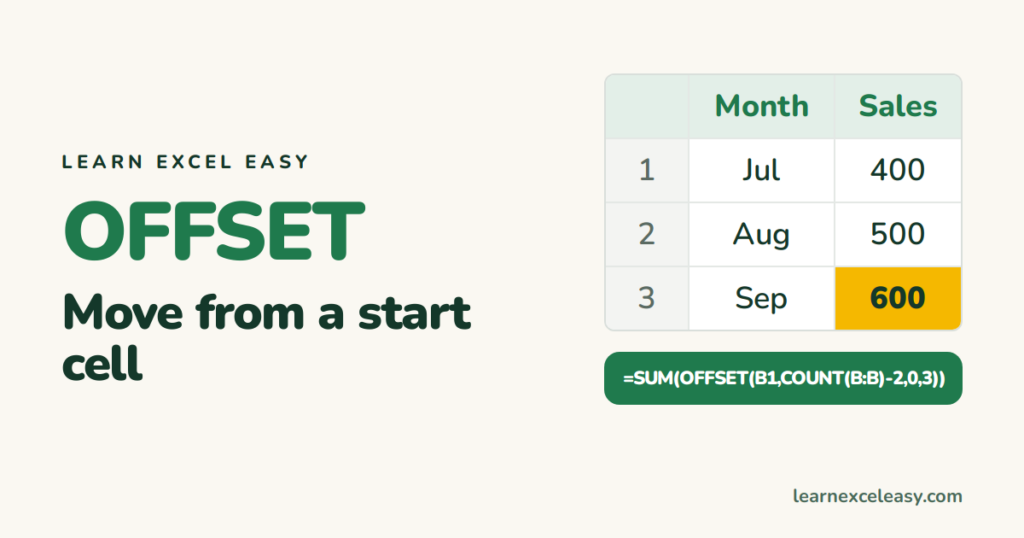
OFFSET starts at one cell, moves down and across, and returns a cell or range of any size from there.
The formula
=OFFSET(reference, rows, cols, [height], [width])
- reference — the starting cell.
- rows — how many down (negative = up).
- cols — how many right (negative = left).
- height, width — size of the range to return (optional).
Simple example
=OFFSET(A1,2,1)
From A1, 2 down and 1 right = B3.
Use 1: total of the last 3 months
Monthly sales in B2 downward, new months added at the bottom:
=SUM(OFFSET(B1,COUNT(B:B)-2,0,3,1))
COUNT finds how many numbers there are, OFFSET jumps to 3 rows before the end and takes 3 rows. Add October and the total moves on its own.
Use 2: a dropdown that grows
Formulas › Name Manager › New, name ListItems, refers to:
=OFFSET($A$2,0,0,COUNTA($A:$A)-1,1)
Use =ListItems as the source of a drop-down list. New items appear automatically. (Easier today: make the list an Excel Table.)
The catch: it is volatile
OFFSET recalculates every time anything changes. In a big workbook with many OFFSETs that slows everything down. The non-volatile alternative:
=SUM(INDEX(B:B,COUNT(B:B)-1):INDEX(B:B,COUNT(B:B)+1))
Same result, only recalculates when column B changes. See INDEX.

20 years with spreadsheets and enterprise systems. Writes one short, plain-English Excel lesson a day. Got an Excel question? learnexceleasycom@gmail.com
