
Excel Table (Ctrl+T): the feature beginners skip and experts use daily
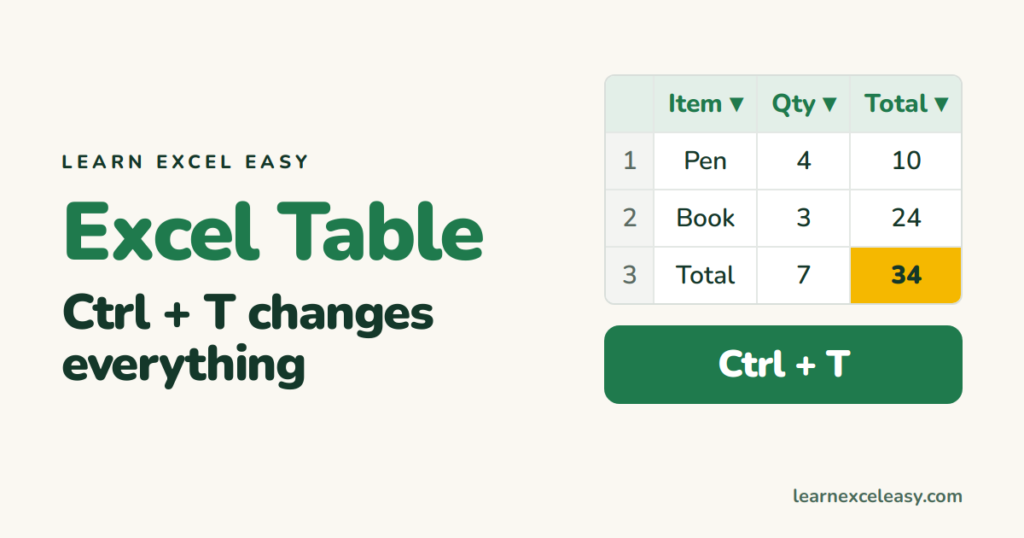
A Table is a range Excel understands as one unit. Formulas fill themselves, new rows join automatically, and pivot tables and charts update without re-pointing.
Steps
- Click any cell in your data. It needs a heading row and no fully blank rows.
- Press Ctrl + T.
- Tick My table has headers. OK.
Stripes and filter arrows appear. A new Table Design tab shows on the ribbon.
Give it a name
Table Design › Table Name box (top left). Type Sales. Now formulas anywhere can say =SUM(Sales[Total]).
Formulas that fill themselves
Type =[@Qty]*[@Price] in the first cell of a new column and press Enter. Excel fills the whole column and keeps doing so for every new row.
Add a total row
Table Design › tick Total Row. Click a total cell to choose Sum, Average, Count from the dropdown.
Add data
Type in the row directly under the table. It becomes part of the table — stripes, formulas and all.
Check it worked
Scroll down: the column letters at the top turn into your headings. That only happens inside a Table.
Turn it back into a normal range
Table Design › Convert to Range. Formatting stays, table behaviour goes.
Common mistake
Merged cells inside the range — Excel refuses. Unmerge first.

20 years with spreadsheets and enterprise systems. Writes one short, plain-English Excel lesson a day. Got an Excel question? learnexceleasycom@gmail.com
