
Excel MID Function: pull text from the middle of a cell
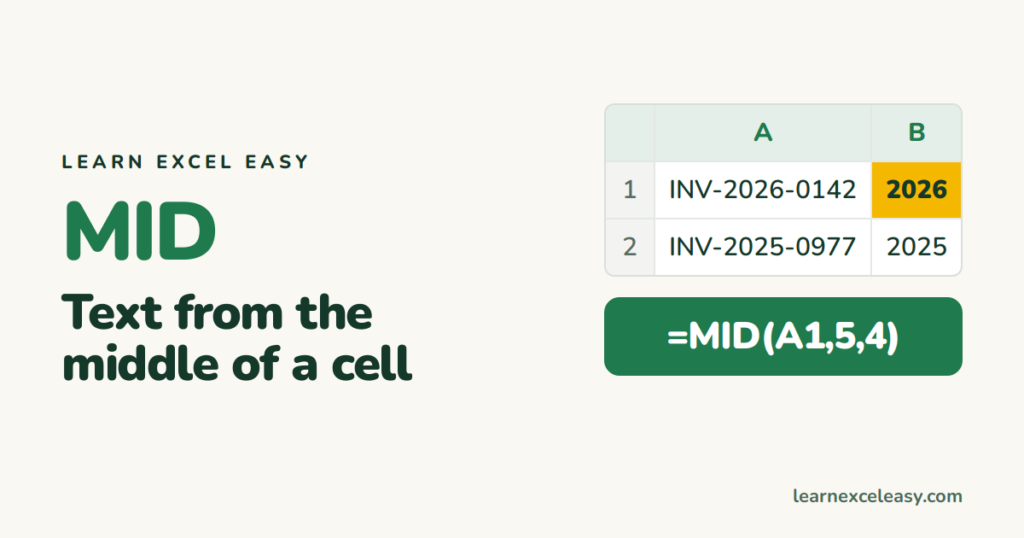
MID pulls out a piece of text from the middle of a cell. Tell it where to start and how many characters to take.
The formula
=MID(text, start_position, how_many)
Steps: get the year from an invoice code
- Codes like
INV-2026-0142in column A. - Click B1. Type
=MID(A1, 5, 4). Enter. - Drag B1 down.
Result: 2026. Counting from 1, the year starts at character 5 and is 4 characters long.
LEFT and RIGHT: the ends
| Want | Formula | Gives |
|---|---|---|
| First 3 characters | =LEFT(A1, 3) |
INV |
| Last 4 characters | =RIGHT(A1, 4) |
0142 |
| Characters 5–8 | =MID(A1, 5, 4) |
2026 |
When the position varies
Everything after the first dash, whatever its position:
=MID(A1, FIND("-", A1)+1, 100)
FIND locates the dash; 100 means “up to 100 characters” — plenty.
The result is text, not a number
MID always returns text. To do maths with it, wrap in VALUE: =VALUE(MID(A1,5,4)).
Check it worked
=LEN(A1) tells you how many characters the cell has. Your start + how_many − 1 must not exceed it.
Common mistake
Counting from 0. Excel counts from 1 — the first character is position 1.

20 years with spreadsheets and enterprise systems. Writes one short, plain-English Excel lesson a day. Got an Excel question? learnexceleasycom@gmail.com
