
How to Copy and Paste in Excel (the right way for each job)
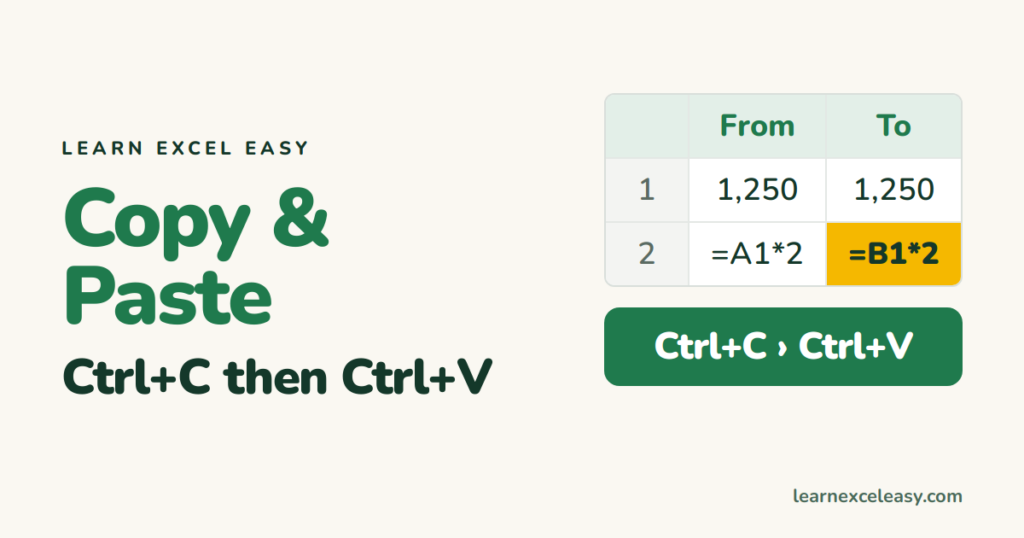
The basics
- Select the cells.
- Ctrl+C. A moving border appears.
- Click the top-left cell of where it should go.
- Ctrl+V.
Press Esc to clear the moving border when you’re done. Ctrl+X instead of Ctrl+C moves the cells.
Paste only the values
Copy, then Ctrl+Alt+V, choose Values, OK. Formulas become plain numbers. More options in Paste Special.
Keep column widths
After pasting, click the little Paste Options icon › Keep Source Column Widths.
Copy by dragging
Select the cells, hold Ctrl, drag the border. Without Ctrl, it moves them.
Copy a formula down a column
Double-click the small square at the bottom-right of the cell, or select the range and press Ctrl+D. See fill down.
Why did the numbers change after pasting?
Formulas shift with the cell: =A1*2 pasted one row down becomes =A2*2. Lock a reference with $ — absolute reference.
Copying a filtered list
Hidden rows can come along. Fix: copy visible cells only.
Paste into several cells
Copy one cell, select the whole target range, Ctrl+V. It fills every cell.

20 years with spreadsheets and enterprise systems. Writes one short, plain-English Excel lesson a day. Got an Excel question? learnexceleasycom@gmail.com
