
How to Group Rows in Excel (collapse and expand with +/−)
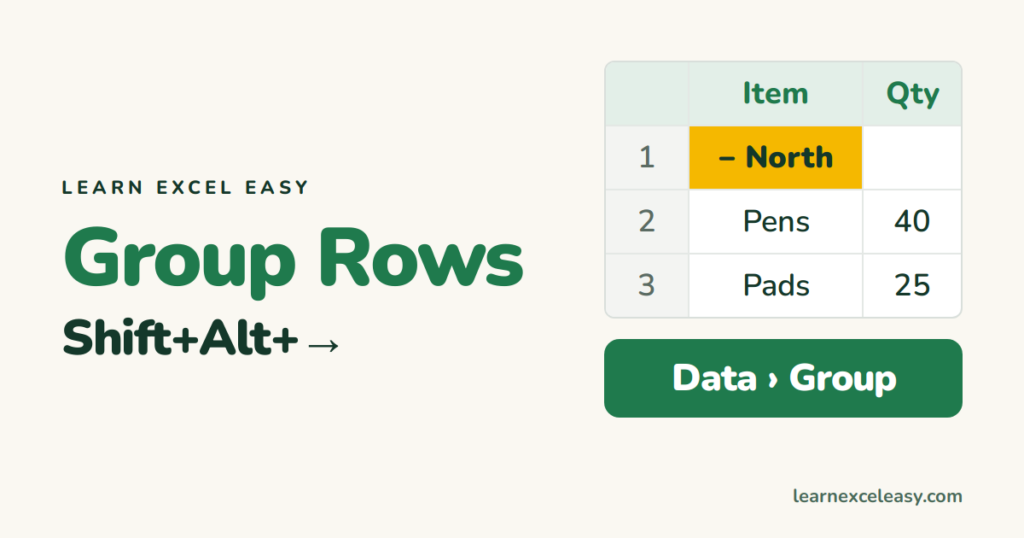
Grouping hides detail rows behind a − / + button, so a long sheet reads like a summary.
Group rows
- Select the detail rows (not the heading row above them).
- Data › Group, or press Shift+Alt+→.
A bar with a − appears on the left. Click − to collapse, + to expand.
Nested levels
Group a smaller set inside an existing group. The 1-2-3 buttons at the top-left show each level: 1 is the summary, the highest number shows everything.
Automatic grouping
- Auto Outline: Data › Group › Auto Outline groups rows that feed SUM formulas.
- Subtotal: Data › Subtotal adds totals and groups in one step. See SUBTOTAL.
Ungroup
Select the rows › Data › Ungroup, or Shift+Alt+←. Clear everything: Data › Ungroup › Clear Outline.
Group vs hide
Hidden rows give no clue they’re there. Grouped rows show a + so readers know there’s more. See hide rows.
Buttons above the group?
Data › Outline dialog launcher › untick Summary rows below detail.

20 years with spreadsheets and enterprise systems. Writes one short, plain-English Excel lesson a day. Got an Excel question? learnexceleasycom@gmail.com
