
How to Remove Line Breaks in Excel
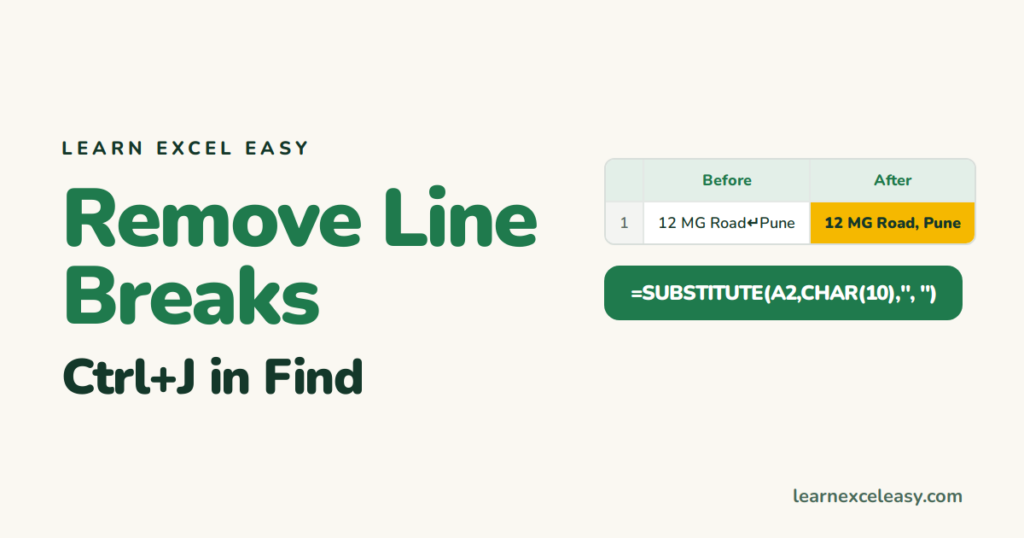
Find and Replace (no formula)
- Select the cells.
- Ctrl+H.
- Click in Find what and press Ctrl+J. The box looks empty — a tiny dot may blink. That’s the line break.
- In Replace with, type a space (or a comma and space).
- Replace All.
If nothing is found, clear the Find box fully and press Ctrl+J only once.
With a formula
=SUBSTITUTE(A2,CHAR(10)," ")
CHAR(10) is the line break. Replace with “, ” for addresses.
Text from a Mac or the web
It may contain CHAR(13) too. Remove both:
=TRIM(SUBSTITUTE(SUBSTITUTE(A2,CHAR(13),""),CHAR(10)," "))
CLEAN
=CLEAN(A2) removes line breaks and other non-printing characters, but joins the words with no space. Use SUBSTITUTE if you need the space.
Cell still looks tall
Turn off wrap text or AutoFit the row height.
Adding a line break instead
Alt+Enter while typing, or =A2&CHAR(10)&B2 with wrap text on.
More cleanup: remove special characters · remove spaces

20 years with spreadsheets and enterprise systems. Writes one short, plain-English Excel lesson a day. Got an Excel question? learnexceleasycom@gmail.com
