
Excel Advanced Filter: complex conditions and unique records
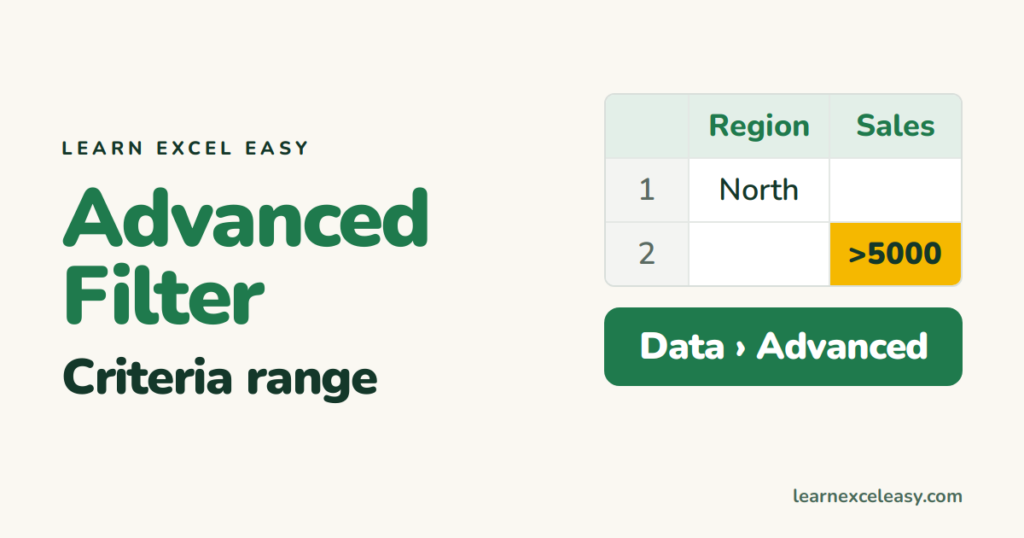
Normal filters can’t do “North or sales over 5,000″. Advanced Filter can — you write the conditions in cells.
Step 1: the criteria range
Above your data (leave a few empty rows), copy the column headers you want to filter on. Type the conditions under them:
| Region | Sales |
|---|---|
| North | |
| >5000 |
- Same row = AND (North with sales over 5,000).
- Different rows = OR (North, or anything over 5,000). This layout is OR.
Step 2: run it
- Click inside the data › Data › Advanced.
- List range: your data including headers.
- Criteria range: the headers plus condition rows (no empty rows below).
- Choose Filter the list, in-place or Copy to another location › OK.
Unique records only
Tick Unique records only with no criteria range and “copy to another location” — a quick de-duplicated copy. See also unique values.
Condition tips
Northmatches anything starting with North. Exact:="=North".- Wildcards:
*pen*contains “pen”. - Between two values: same header twice side by side,
>=1000and<=5000.
It doesn’t update
Advanced Filter is a one-time action. Change the criteria and run it again. For live results use the FILTER function.
Simpler cases: filter with multiple criteria

20 years with spreadsheets and enterprise systems. Writes one short, plain-English Excel lesson a day. Got an Excel question? learnexceleasycom@gmail.com
