
Excel Circular Reference: find it and fix it
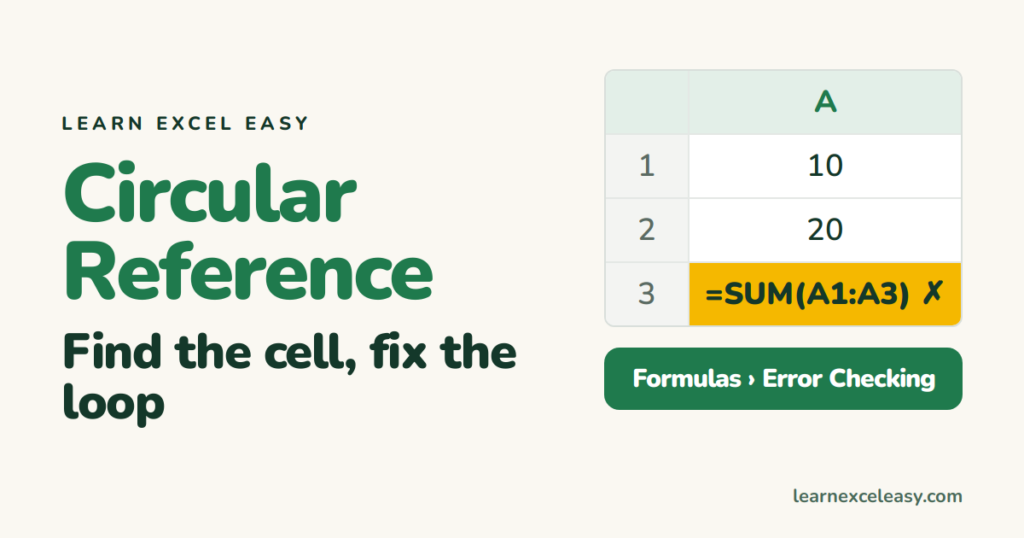
A circular reference is a formula that depends on its own cell. =SUM(A1:A3) typed in A3 is asking Excel to add a number that includes the answer. Excel gives up and shows 0.
Find it
- Look at the status bar, bottom-left: Circular References: A3. That is the cell.
- Not showing? Formulas › Error Checking ▾ › Circular References. Click the address listed to jump there.
In a big workbook the status bar shows the address only when you are on the sheet that has it. Check each sheet.
Fix cause 1: the range includes the formula cell
=SUM(A1:A3) in A3 should be =SUM(A1:A2). Click the cell, press F2, shrink the range.
Fix cause 2: two cells refer to each other
B1 says =C1*2 and C1 says =B1/2. One of them must hold a plain number. Decide which is the input and type a value there.
Check it worked
The status bar no longer says Circular References, and the cell shows a real number instead of 0.
The warning on opening a file
“There are one or more circular references…” — click OK, then find and fix as above. The file is not damaged.
When you want a loop on purpose
Rare — some interest calculations do. File › Options › Formulas › tick Enable iterative calculation. Use only if you know why.

20 years with spreadsheets and enterprise systems. Writes one short, plain-English Excel lesson a day. Got an Excel question? learnexceleasycom@gmail.com
