
Excel Date Format: change how dates look, and fix dates that won’t change
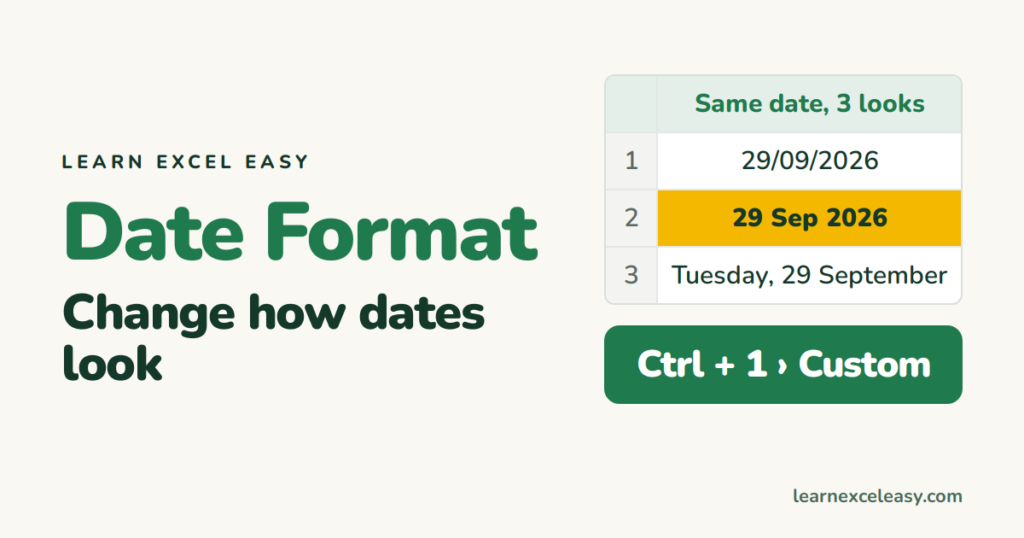
A date in Excel is a number; the format only decides how it is displayed. Change the look without touching the value.
Steps
- Select the date cells.
- Press Ctrl + 1. Number tab › Date.
- Pick a format from the list. OK.
Custom formats (any layout you want)
Ctrl + 1 › Custom › type a code:
| Code | Shows |
|---|---|
dd/mm/yyyy |
29/09/2026 |
dd-mmm-yyyy |
29-Sep-2026 |
d mmmm yyyy |
29 September 2026 |
dddd, d mmm |
Tuesday, 29 Sep |
yyyy-mm-dd |
2026-09-29 (sorts correctly as text, good for exports) |
mmm yyyy |
Sep 2026 |
Check it worked
Click the cell. The formula bar shows the date in your system format; the cell shows your chosen look. Both are the same date.
The format will not change
The “dates” are text. Signs: left-aligned, format changes do nothing. Fix:
- Select the column. Data › Text to Columns › Next › Next.
- Column data format: Date › choose the order the text is in (DMY for 29/09/2026). Finish.
Or a formula: =DATEVALUE(A1). Details: convert text to date.
Day and month swapped (US vs UK)
Typing 03/04 gives 4 March on an Indian/UK system and 3 April on a US one. To avoid it forever, type 2026-04-03 — Excel reads year-month-day everywhere.

20 years with spreadsheets and enterprise systems. Writes one short, plain-English Excel lesson a day. Got an Excel question? learnexceleasycom@gmail.com
