
Excel Days Between Dates: subtract, or count working days only
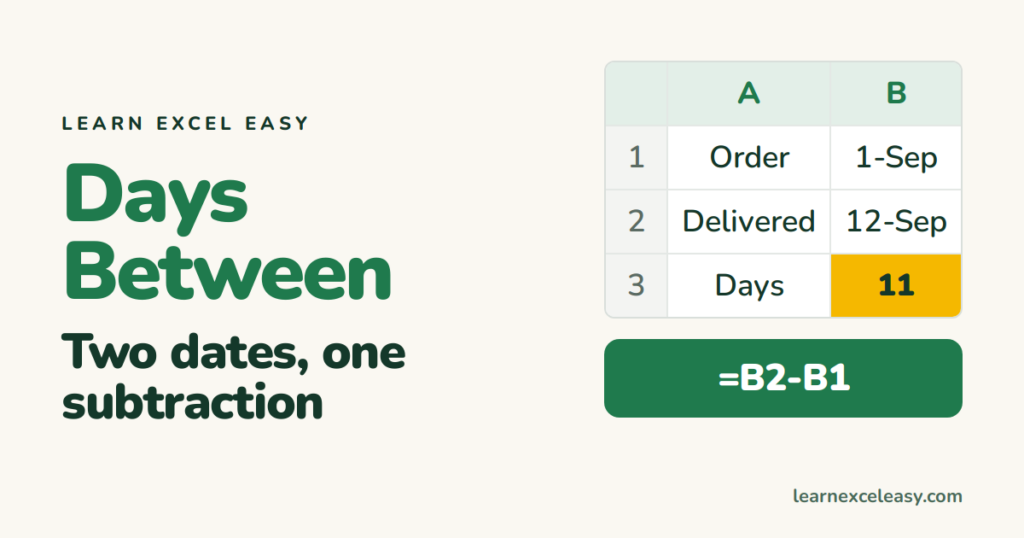
Excel stores every date as a number of days, so the days between two dates is just one minus the other.
Steps
- Earlier date in B1, later date in B2.
- Click B3. Type
=B2-B1. Enter. - If the result looks like a date (e.g. 11-Jan-1900), press Ctrl + Shift + ~ to switch the cell to General.
Result: 11.
Working days only (skip weekends)
=NETWORKDAYS(B1, B2)
Counts Monday to Friday, including both dates.
Skip holidays too
List your holidays in F1:F10, then:
=NETWORKDAYS(B1, B2, F1:F10)
Days from today
=B1-TODAY()
Positive = still to come. Negative = already passed.
Add days to a date
30 days after B1: =B1+30. 30 working days after: =WORKDAY(B1, 30).
Check it worked
1 Sep to 12 Sep is 11 days. Monday to the next Monday is 7. If your answer is off by tens of thousands, the cell format is wrong — see step 3.
Common mistake
#VALUE! means one cell holds text, not a date. Retype it, or use =DATEVALUE(B1).

20 years with spreadsheets and enterprise systems. Writes one short, plain-English Excel lesson a day. Got an Excel question? learnexceleasycom@gmail.com
