
Excel File Corrupted? How to recover it (5 methods)
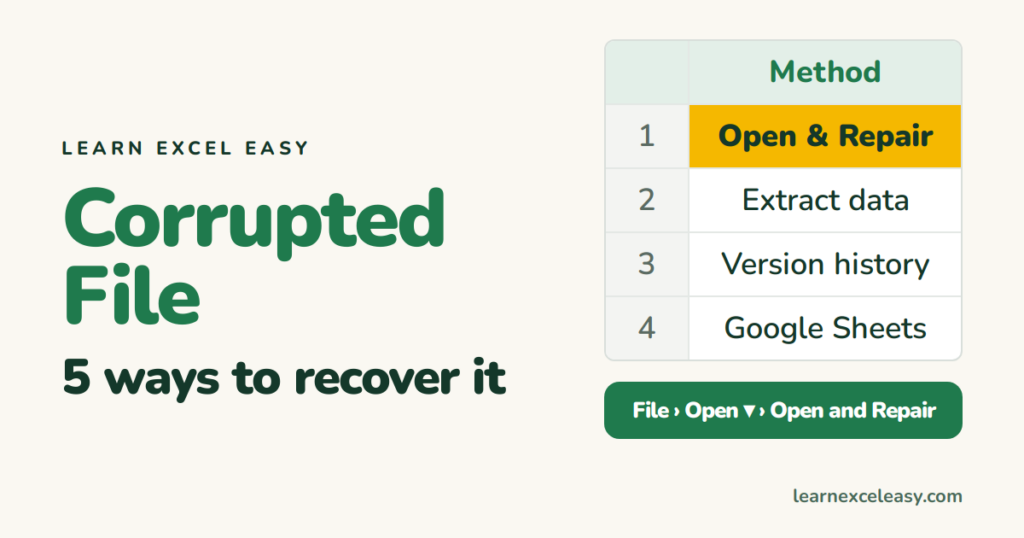
“Excel cannot open the file because the file format or extension is not valid” or “We found a problem with some content”. Try these in order; stop when one works.
1. Open and Repair
- Open Excel. File › Open › Browse.
- Select the file. Click the small arrow on the Open button › Open and Repair.
- Click Repair. If that fails, do it again and click Extract Data — you get values and formulas but lose formatting.
2. Previous version
- OneDrive / SharePoint: right-click the file online › Version history › restore one from before the damage.
- Windows: right-click the file › Properties › Previous Versions tab (needs File History or a restore point).
- Excel AutoRecover: File › Info › Manage Workbook › Recover Unsaved Workbooks.
3. Open it somewhere else
Upload to Google Drive › open with Google Sheets › File › Download › .xlsx. Sheets is forgiving about damaged files. LibreOffice Calc is another option.
4. Pull the data out with a formula
In a new workbook, in A1: ='C:\path\[broken.xlsx]Sheet1'!A1, then drag across and down. Works when the file is damaged but not destroyed.
5. The zip trick (last resort)
An .xlsx is a zip file. Copy it, rename the copy to .zip, open it, and look in xl\worksheets\. If sheet1.xml opens in Notepad and contains your numbers, the data is there; delete xl\calcChain.xml, rename back to .xlsx and try opening again.
Check it worked
The file opens, sheets are there, a few formulas show live results. Save immediately under a new name.
Prevent it
Save to OneDrive (version history for free). Don’t work on files directly from a USB stick or email attachment. Keep AutoRecover at 5 minutes.

20 years with spreadsheets and enterprise systems. Writes one short, plain-English Excel lesson a day. Got an Excel question? learnexceleasycom@gmail.com
