
Excel Keeps Changing Numbers to Dates: stop it
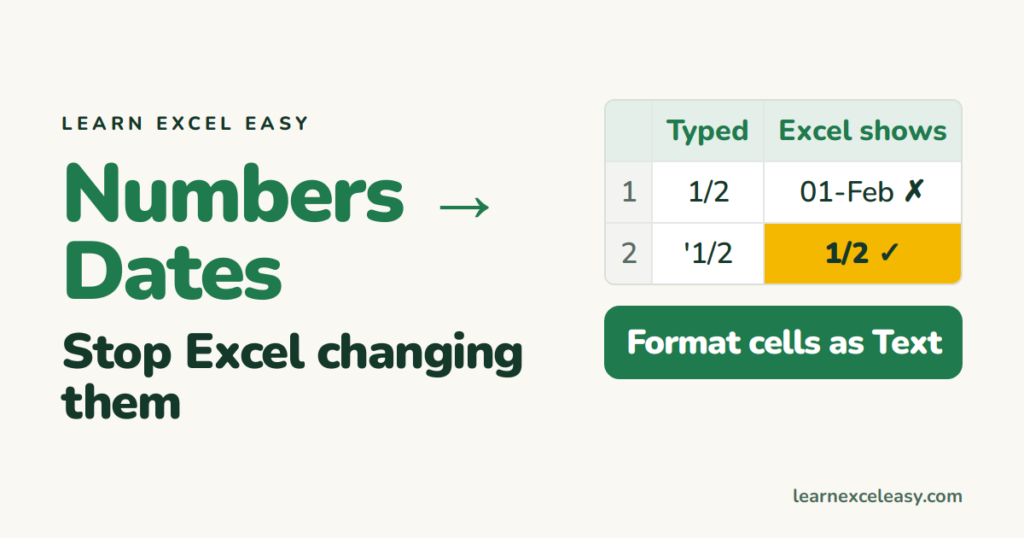
Type 1/2, 3-4 or SEPT1 and Excel decides it is a date. Fractions, ratios, product codes and gene names all get mangled. Here is why and how to stop it.
Why
Excel guesses the type of everything you type. Anything that looks like a date becomes one, and the original text is gone.
Fix 1: format the cells as Text first
- Select the column before typing.
- Press Ctrl + 1 › Text › OK.
- Now type
1/2. It stays 1/2.
Fix 2: an apostrophe
Type '1/2. The apostrophe tells Excel “this is text” and does not show in the cell.
Fix 3: for imported files
Do not double-click the CSV. Use Data › From Text/CSV and set the column type to Text before loading. Steps: CSV to Excel.
Get the original back
If you typed 1/2 and got 01-Feb, press Ctrl + Z straight away. Later than that, Excel only has the date now. Retype it.
I want a real fraction
Type 0 1/2 (zero, space, one slash two). Excel stores 0.5 and shows ½.
Check it worked
Click the cell. The formula bar shows exactly what you typed, and the cell is left-aligned (text) rather than right-aligned (number/date).
Related annoyances
Excel also turns long numbers into 1.23E+15 and strips leading zeros. Same fix: Text format before typing.

20 years with spreadsheets and enterprise systems. Writes one short, plain-English Excel lesson a day. Got an Excel question? learnexceleasycom@gmail.com
