
MAX IF in Excel: the highest value that meets a condition (MAXIFS)
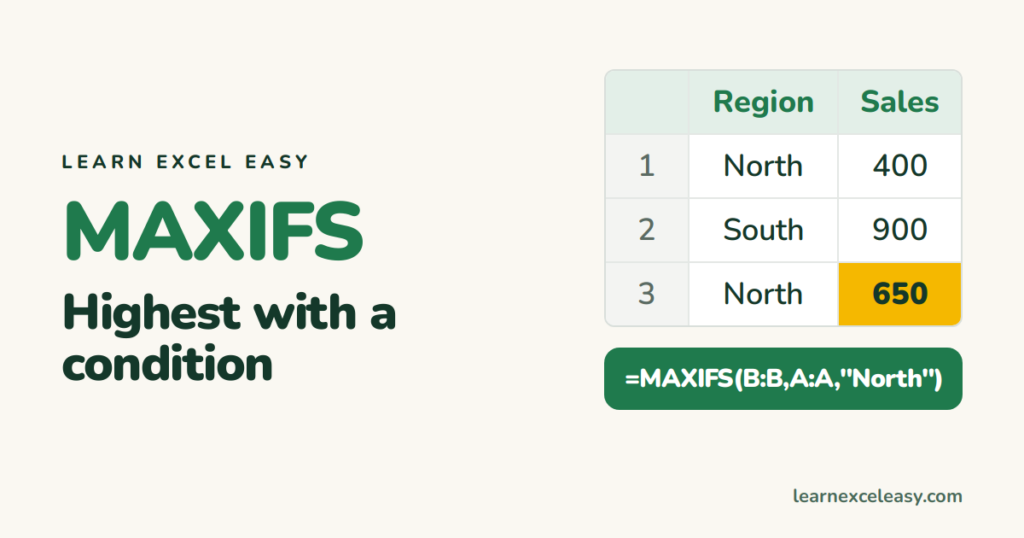
MAX finds the biggest number in a range. MAXIFS finds the biggest number among rows that match.
The formula (Excel 2019, 2021, 365)
=MAXIFS(max_range, criteria_range1, criteria1, ...)
Example: best North sale
=MAXIFS(B2:B100,A2:A100,"North")
North rows have 400 and 650; the South 900 is ignored. Result: 650.
More uses
- Latest date for a customer (dates in C):
=MAXIFS(C:C,A:A,F2)— format as a date. - Two conditions:
=MAXIFS(B:B,A:A,"North",D:D,"Paid") - Highest under a limit:
=MAXIFS(B:B,B:B,"<1000")
Smallest instead: MINIFS
Same pattern. Lowest price for a product: =MINIFS(C:C,A:A,"Pen"). Full guide: MIN IF.
Older Excel (2016 and before)
=MAX(IF(A2:A100="North",B2:B100))
Press Ctrl+Shift+Enter instead of Enter; curly brackets appear around the formula.
Which row is it?
To get the name next to that maximum, use it in a lookup: =XLOOKUP(MAXIFS(B:B,A:A,"North"),B:B,C:C). See XLOOKUP.
Result is 0 when nothing matches — check spelling and stray spaces.

20 years with spreadsheets and enterprise systems. Writes one short, plain-English Excel lesson a day. Got an Excel question? learnexceleasycom@gmail.com
