
Excel XMATCH: the modern MATCH (exact by default, searches backwards)
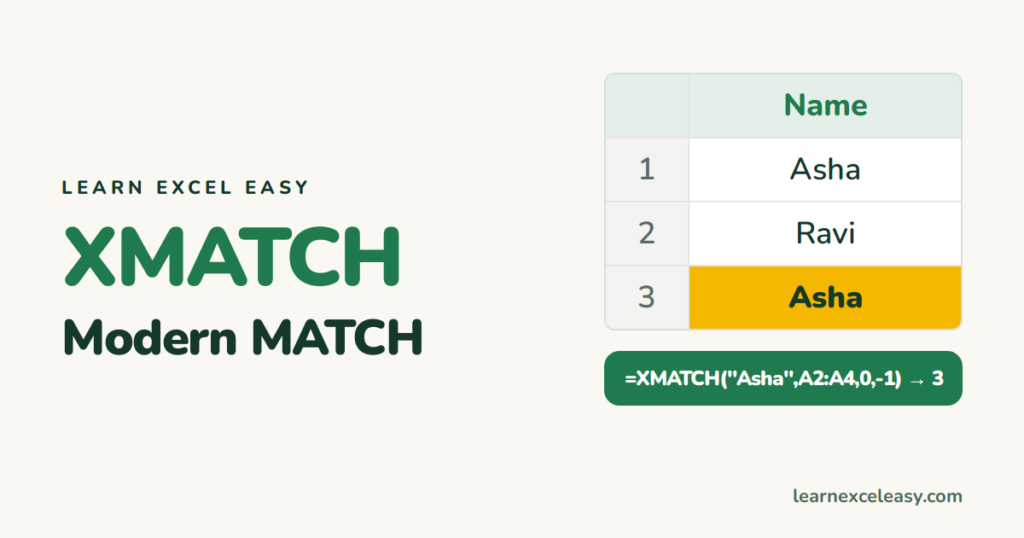
XMATCH (Excel 365/2021) does what MATCH does — returns a position — with safer defaults and two new abilities.
The formula
=XMATCH(lookup_value, lookup_array, [match_mode], [search_mode])
What’s better than MATCH
- Exact match by default.
=XMATCH("Mango",A2:A100)— no forgotten 0. - Search from the bottom: search_mode -1 finds the last occurrence.
- Next smaller or larger without sorting the list.
- Wildcards with match_mode 2.
match_mode
| Value | Meaning |
|---|---|
| 0 (default) | exact |
| -1 | exact, or the next smaller value |
| 1 | exact, or the next larger value |
| 2 | wildcards * and ? |
Last occurrence
=XMATCH("Asha",A2:A100,0,-1)
If Asha is in rows 1 and 3 of the range, this returns 3. Combine with INDEX for the latest order: =INDEX(C2:C100,XMATCH("Asha",A2:A100,0,-1)).
Tax band without sorting
=XMATCH(B2,$E$2:$E$6,-1)
Position of the band at or below the income.
Just want the value?
Use XLOOKUP directly — it has the same options and returns the value, not the position. XMATCH is for when you need the number: INDEX, OFFSET, or “which column is March?”.

20 years with spreadsheets and enterprise systems. Writes one short, plain-English Excel lesson a day. Got an Excel question? learnexceleasycom@gmail.com
