
IF Function in Excel: one result if true, another if not
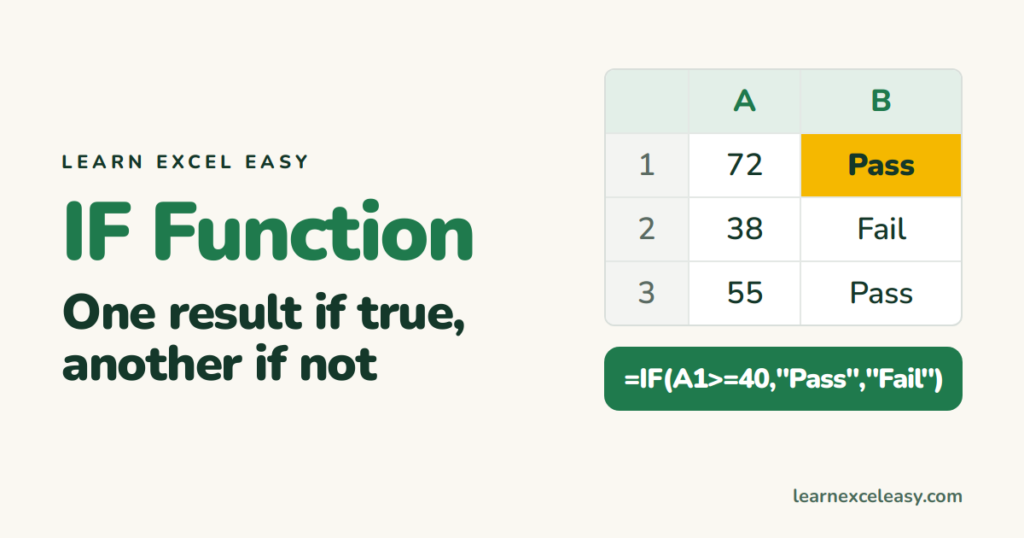
IF asks a yes/no question about a cell and gives one answer for yes, another for no.
The formula
=IF(test, value_if_yes, value_if_no)
Steps: pass or fail
- Scores in column A.
- Click B1. Type
=IF(A1>=40, "Pass", "Fail"). Enter. - Drag B1 down.
| A | B | |
|---|---|---|
| 1 | 72 | Pass |
| 2 | 38 | Fail |
The tests you can write
| Sign | Means |
|---|---|
= |
equal to |
<> |
not equal to |
> < |
greater / less than |
>= <= |
greater / less than or equal |
Text goes in quotes: =IF(A1="Yes", 1, 0).
Two conditions: AND / OR
=IF(AND(A1>=40, B1="Present"), "Pass", "Fail")
=IF(OR(A1>=90, B1="Bonus"), "Star", "")
"" means leave the cell blank.
Three or more outcomes
Nested IF — each “no” opens another IF:
=IF(A1>=70, "A", IF(A1>=40, "B", "C"))
Excel 2019+ has IFS, which reads more easily:
=IFS(A1>=70, "A", A1>=40, "B", TRUE, "C")
Check it worked
Type a score exactly on the boundary — 40. It must say Pass. Then 39 — Fail.
Common mistakes
Missing quotes around text → #NAME?.
Brackets don’t match. Every nested IF needs its own closing bracket — Excel colours them so you can count.

20 years with spreadsheets and enterprise systems. Writes one short, plain-English Excel lesson a day. Got an Excel question? learnexceleasycom@gmail.com
