
Import Excel to Google Sheets (and keep it in sync)
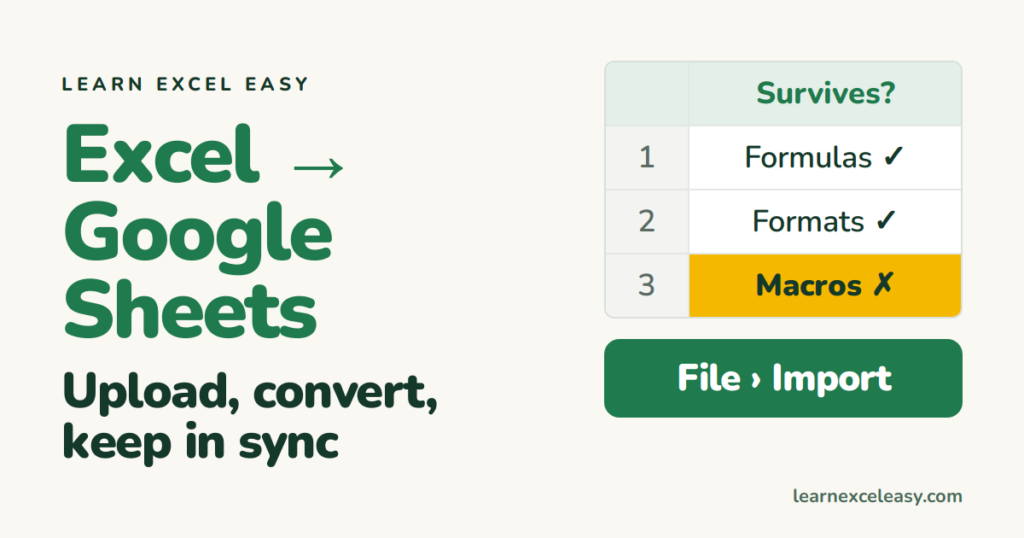
Three ways in, depending on whether you want a real Google Sheet or just to view the Excel file.
Way 1: convert to a Google Sheet (most common)
- Open sheets.google.com › Blank.
- File › Import › Upload › pick the .xlsx.
- Import location: Replace spreadsheet. Import.
It is now a Google Sheet. The original Excel file is untouched.
Way 2: open the .xlsx as is
Upload the file to Google Drive › double-click it. Sheets opens it in Excel mode (a green .XLSX badge by the name). You can edit and it stays an Excel file. Some features are read-only.
Way 3: from Drive, converted
In Drive, right-click the .xlsx › Open with › Google Sheets › File › Save as Google Sheets.
What survives
| Survives | Lost or changed |
|---|---|
| Values, formulas (most), formatting, charts (most), data validation, conditional formatting, freeze panes | Macros/VBA, Power Query, some newer functions (XLOOKUP works; dynamic arrays mostly), form controls, some chart types |
Keep a Sheet updated from Excel
Put the Excel file in a Drive folder synced with Google Drive for desktop. Open it via Way 2 — every save in Excel shows in Sheets.
Go back to Excel
File › Download › Microsoft Excel (.xlsx).
Check it worked
A cell with a formula still shows a formula in the Sheets formula bar, not a fixed value.

20 years with spreadsheets and enterprise systems. Writes one short, plain-English Excel lesson a day. Got an Excel question? learnexceleasycom@gmail.com
