
How to Calculate Percentage in Excel: 4 everyday cases
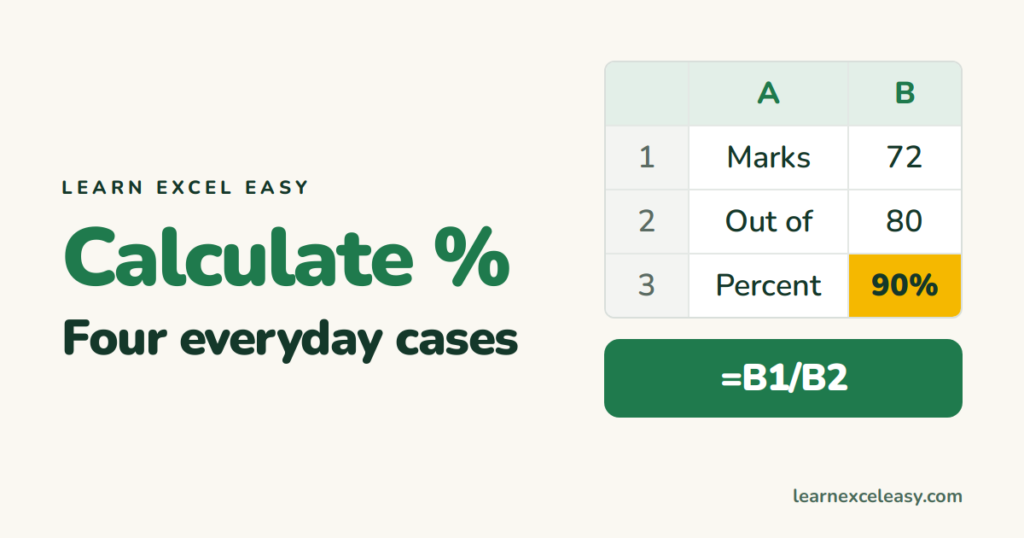
Every percentage in Excel is a division followed by the % format. Four cases cover nearly everything.
Case 1: marks out of a total
- Marks in B1 (72), total in B2 (80).
- Click B3. Type
=B1/B2. Enter. - Press Ctrl + Shift + %. Shows 90%.
Case 2: each item’s share of the whole
Values in A2:A6. In B2: =A2/SUM($A$2:$A$6). Format as %, drag down. The column adds to 100%.
Case 3: increase or decrease
Last year in A2, this year in B2:
=(B2-A2)/A2
Negative means a decrease.
Case 4: a discount or a tax
=A2*(1-15%)     → price minus 15%
=A2*(1+18%)     → price plus 18% GST
=A2*15%         → just the discount amount
Check it worked
72 out of 80 is 90. Half of anything is 50%. If you see 9000% you multiplied by 100 and formatted — do one or the other.
Common mistakes
#DIV/0! — dividing by an empty or zero cell. Wrap in IFERROR.
Decimals showing as 0%. Increase decimal places with the .00→ button on the Home tab.
More detail: percentage formula.

20 years with spreadsheets and enterprise systems. Writes one short, plain-English Excel lesson a day. Got an Excel question? learnexceleasycom@gmail.com
