
Excel Percentage Formula: percent of total, change, and discount
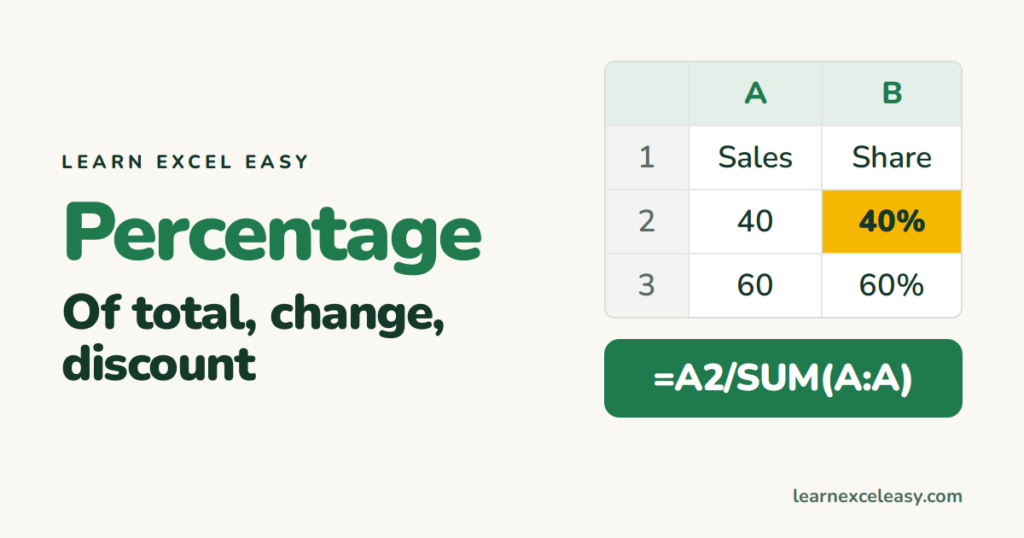
Excel has no PERCENT function. A percentage is just a division, shown with the % format. Three jobs cover almost every case.
1. What percent of the total is this?
- Numbers in column A (A2:A5). Click B2.
- Type
=A2/SUM($A$2:$A$5), press Enter. - With B2 selected press Ctrl + Shift + %. It shows 40% instead of 0.4.
- Drag B2 down. The
$signs keep the total fixed.
2. Percentage change (this month vs last)
=(new - old) / old
Last month in A2, this month in B2: =(B2-A2)/A2. Format as %. A negative result means it went down.
3. Take a discount off a price
=price * (1 - discount)
Price in A2, 20% discount: =A2*(1-20%) or =A2*0.8. To add 18% tax: =A2*(1+18%).
Check it worked
Percent-of-total column should add up to 100%. Select it and read the Sum in the status bar.
Common mistakes
Multiplying by 100. Do not write =A2/B2*100 and then format as % — you get 4000%. Divide only, then apply the % format.
Typing 20 instead of 20%. In a cell, 20 is twenty; 20% is 0.2. Type the % sign.
Dividing by zero. If the old value is 0 you get #DIV/0!. Wrap it: =IFERROR((B2-A2)/A2,"").

20 years with spreadsheets and enterprise systems. Writes one short, plain-English Excel lesson a day. Got an Excel question? learnexceleasycom@gmail.com
